


What does a coordinator check before closing?
A transaction coordinator checks every open loop for the same two things: documents that have not arrived and tasks that are not done. Doing it loop by loop means opening each one, a folder at a time.
With Claude or ChatGPT connected to dotloop through Elaichi, you ask once and get a list. This page is for the transaction coordinator who runs that check every morning, and the broker who wants closings to stop slipping.
What can I ask dotloop in ChatGPT or Claude?
You can ask about any loop in your dotloop account, one at a time or all at once. Each request below uses something dotloop can really return.
- "Which of my open loops have documents missing?" The assistant lists your loops, then each loop's folders and documents.
- "What tasks are still open on 12 Oak Street?" It reads the loop's task lists and shows which items are not done.
- "Which tasks are overdue across my loops this week?" It reads the due dates on the task items.
- "Who is on the 12 Oak Street loop?" It lists the people, such as the buyer, the lender and the title contact.
- "What changed on this loop in the last three days?" It reads the loop's activity feed.
- "What is the closing date and price for Emily Carter's loop?" It reads the loop details.
- "Compare the documents in this loop to my list below and tell me what is missing." You paste your office's required documents.
The assistant works from a profile, which is your dotloop account's workspace. If you have more than one, say which one you mean.
Can it tell what is missing?
It can tell what is there, and it can compare that to a list. It does not know your office's required documents on its own.
dotloop's public API describes documents as files kept in folders inside a loop, and task lists as groups of items with a name, a due date and a done flag (dotloop.github.io, checked November 2026). The assistant reads exactly those. So the answer is strongest when your tasks and folders are set up the way your office works.
Give it your list once, such as "inspection report, signed disclosure, lender approval, final walkthrough." Then ask it to compare each loop to the list. It tells you which items it found and which it did not. Check anything it marks missing against dotloop before you chase a client, because a file saved under a different name may look missing.
What about SkySlope?
If your brokerage also uses SkySlope, the assistant can read a sale or listing there too. It can list the documents on a sale and read the sale's record, which includes its checklist.
It cannot see dotloop from SkySlope or the other way around. Ask each question in its own app. SkySlope also has tools that approve or reject a checklist item, which a broker may want to restrict so only people can do that.
What can the assistant not do?
The assistant cannot mark a task done. The dotloop tools for task lists only read, so a task stays open until a person closes it in dotloop (checked November 2026). It also cannot chase a client for you. If you connect Gmail too, it can save a reminder as a draft, which stays unsent until you press send (developers.google.com, checked November 2026).
dotloop does have tools that change things: loop details, the people on a loop, folders and documents. A team on the Gold plan ($15 per user per month in USD, or $10 per user per month billed annually) can restrict them. Many brokers will want the assistant to read only. Restricted tools are left out of what Claude or ChatGPT can use, and a rule change takes effect within about two minutes.
Elaichi does not ask before each call over a chat connection. If a tool is allowed, the assistant can run it. So set the rule first and test it. Each person signs in as themselves, so the assistant sees only that person's loops.
Make it run on its own
The morning check can run before you sit down. Set a schedule for every weekday at 8 am. The steps read your open loops, then each loop's tasks and documents. With Gmail connected, the last step saves the gaps as a Gmail draft.
Ask Claude or ChatGPT to set it up, or use the Elaichi app. Workflows need Black. Every new workspace gets a 14-day Black trial with workflows included. A test run changes nothing in dotloop. The builder can add an approve step that asks a named person, such as the broker, before a step that writes. Elaichi does not require one.
How do I set it up?
Setup takes three steps. The free Personal plan allows three apps and ten connections, so one coordinator can try it at no cost.
- Sign up at Elaichi and connect dotloop. You sign in with your own dotloop account. The dotloop page lists what the assistant can read and change.
- Add the address
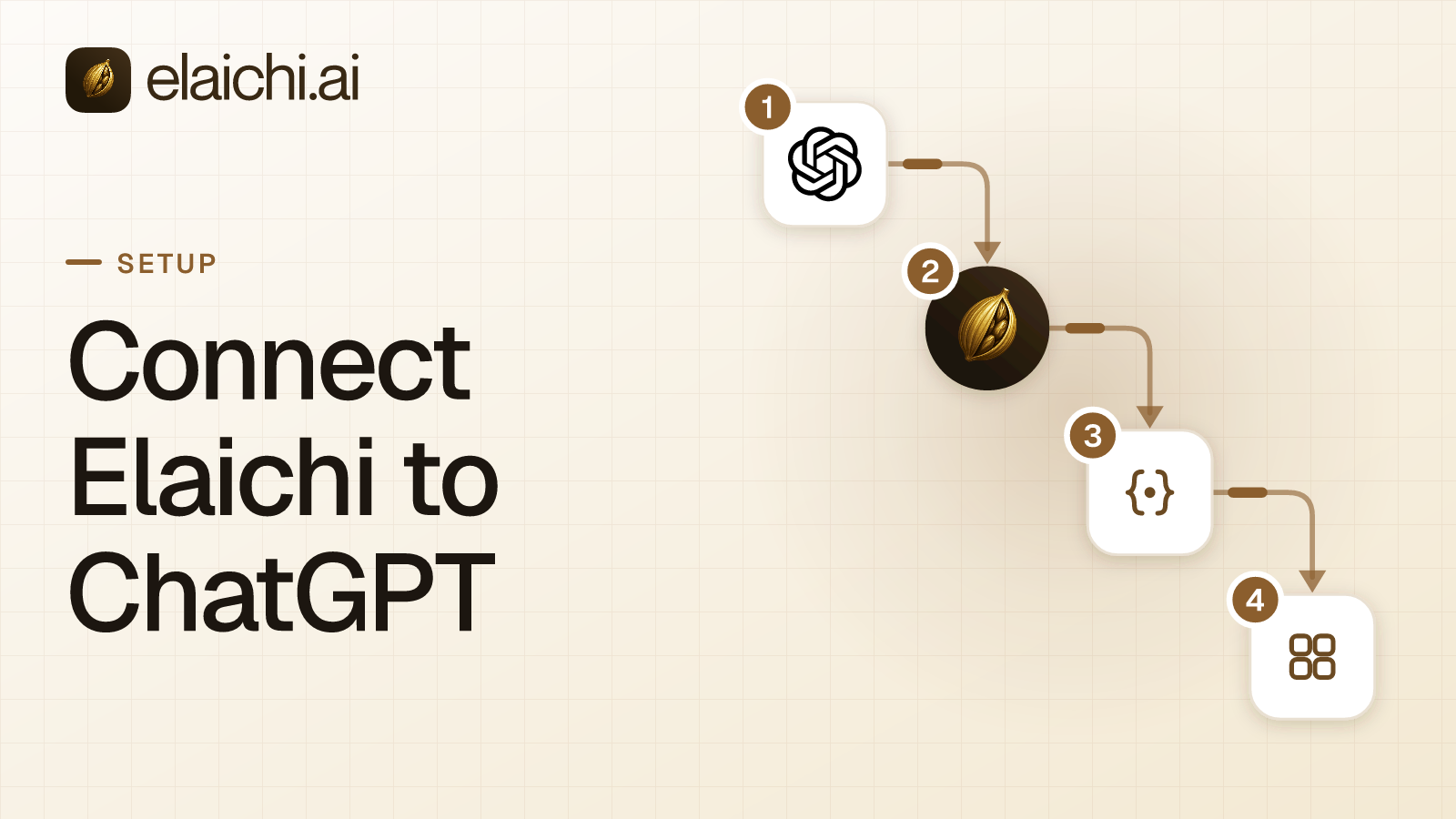
https://api.elaichi.ai/mcp. It is the same address for every user and every client. In Claude on Pro or Max, use Customize, Connectors, Add custom connector. Team and Enterprise owners use Organization settings. In ChatGPT Business, an admin adds it under Plugins. - Sign in to Elaichi when the chat asks, then ask which loops are missing documents. Connecting Elaichi to ChatGPT shows the screens.
OpenAI says full access for custom connections is on ChatGPT Business and Enterprise/Edu, and Pro gets read and fetch only (help.openai.com, checked November 2026). ChatGPT Pro connects with read and fetch only. Reading loops works on Pro. Writing needs ChatGPT Business, Enterprise or Claude.
For the full set of jobs across the CRM, inbox and calendar, read ChatGPT for real estate agents. To book showings from the same chat, see using ChatGPT with Follow Up Boss.

 Add one link to your AI app
 ChatGPT
 Claude
 Cursor
 Microsoft Copilot