


Emily Carter owns a CrossFit gym. Before the 6 am class she wants to know who reserved, who is on the waitlist and who has a membership problem. Each answer sits on a different Zen Planner screen. She can use ChatGPT with Zen Planner and type it in one line. Claude works the same way.
Elaichi links the chat to Zen Planner. It is free for one person. The wider view for owners is ChatGPT for salon owners, which also covers gyms. This page covers coaches and the front desk.
What can gym staff ask ChatGPT in Zen Planner?
Staff can ask ten things, and each one maps to a real tool in Zen Planner. Type them in your own words.
- "What classes run today?" The AI lists the classes for a date.
- "Who has reserved a spot in the 6 am class?" It reads the attendance list for that class.
- "Can Jake Morgan still reserve the 6 pm class?" It checks whether his plan allows a reservation.
- "Reserve Jake Morgan a spot in the 6 pm class." It makes the reservation. Zen Planner may send its own confirmation, depending on your settings.
- "Put Emily Carter on the waitlist for Saturday's class." It adds her to the waitlist.
- "Check Jake Morgan into the noon class." It records the check-in. Zen Planner may send its own confirmation, depending on your settings.
- "What memberships does Emily Carter have?" It reads her memberships.
- "Are there any alerts on Jake Morgan's account?" It reads the alerts on his record.
- "Add a prospect: Emily Carter, with her email, interested in the kids program." It creates a prospect.
- "Who signed up for Saturday's event?" It lists the registrations for an event.
Read each answer before you act on it. Check a reservation or a prospect the way you would check an assistant's work.
Make it run on its own
Prompt ten suits a workflow too. Run it each Monday at 8 am: list this week's events, list who registered for each, and post the counts in a Slack channel for coaches. Every step is a real Zen Planner tool, and Slack takes the post.
Chat acts right away. A workflow can stop at an approve step, so a named person, in Elaichi or in Slack, agrees before a step that changes something. The AI never approves its own work. A test run reads real data but changes nothing, which makes it a safe first try.
Tell Claude or ChatGPT: "every Monday at 8 am, post this week's events and sign-ups in Slack." Or build it in the Elaichi app. Black includes workflows, and each new workspace gets a 14-day Black trial.
What can ChatGPT not do in Zen Planner?
ChatGPT cannot cancel a membership and cannot write a custom message to a member. It can cancel a reservation, enroll a person in a membership and open a checkout cart, and a team lead on Gold has to switch those off. Elaichi does not ask before each call. Claude and ChatGPT may show their own approval prompt.
- It cannot cancel a membership. Zen Planner has no such tool here.
- It cannot write your own message to a member. None of the Zen Planner tools does that. Use a Gmail draft, and press send yourself.
- It can cancel a reservation. That tool exists. Restrict it for the front desk.
- It can enroll a person in a membership and create a checkout cart. Restrict both for anyone who does not sell plans.
- It can change a member's preferences. Restrict that if staff should not.
Gold lets a team lead restrict tools. Pick a role, name the tools, and they stop working for that role. Personal, the free plan, has no restrictions. The change lands within about two minutes. Search still lists a restricted tool with a flag. Any tool you leave unnamed keeps working.
How do you use ChatGPT with Zen Planner for the first time?
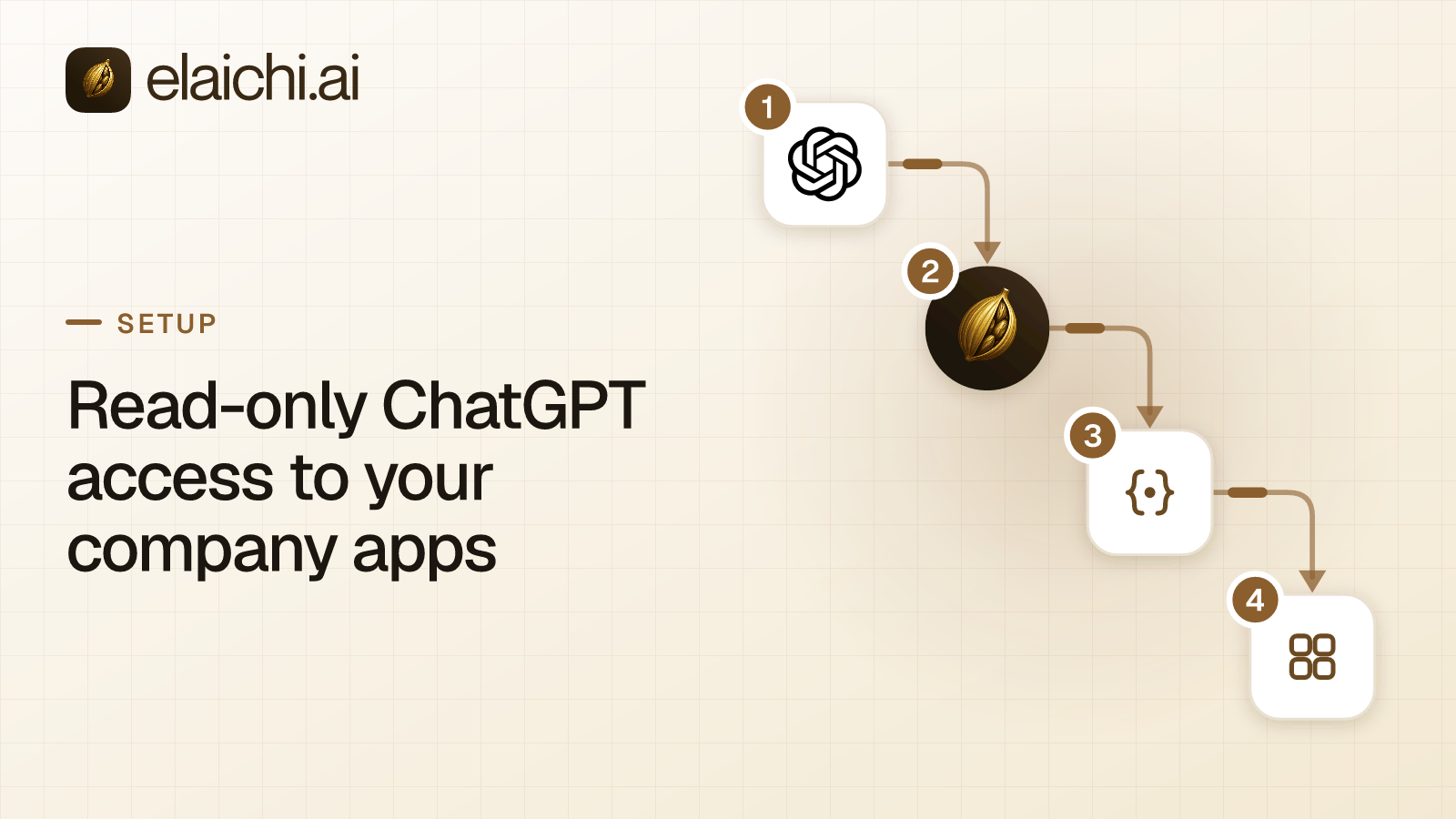
Setup takes three steps. You do it once.
- Connect Zen Planner in Elaichi. Sign up, add Zen Planner and enter the credentials it asks for. One person and up to three apps fit the free plan.
- Add Elaichi to ChatGPT or Claude. Use the address
https://api.elaichi.ai/mcp. Using Claude on Pro or Max, open Customize, then Connectors, and choose Add custom connector (Anthropic help, checked November 2026). With ChatGPT, a Pro plan reads only, so reservations and check-ins need ChatGPT Business, Enterprise or Claude. A Business admin adds the server (OpenAI help, checked November 2026). - Ask the first question. Start with prompt two. The Zen Planner page lists every tool the AI can use.
Zen Planner describes itself as gym management software for martial arts, functional fitness and boutique studios (Zen Planner, checked November 2026).
Is this worth it for a small gym?
It pays off when classes fill and the waitlist moves fast. If you run two classes a day and know every member, you may not need it. The gain is one sentence instead of three screens.

 Add one link to your AI app
 ChatGPT
 Claude
 Cursor
 Microsoft Copilot