This video shows how to block a risky tool for a whole role, on the real screens, with the Member role, Stripe and Claude as the example. The sandbox is in Stripe's test mode with fictional customers.
Why block a risky tool for a whole role in one place?
Every AI app keeps its own tool settings. Claude's connectors let you set a tool to Always allow, Needs approval or Blocked. ChatGPT's apps have their own permission settings. Cursor's team controls set which MCP servers and tools the team may run. Each one works only inside its own app, so a rule in one never reaches the others. Miss one setting, and a teammate's AI can do what you meant to keep closed, like handing out discounts.
An Elaichi restriction is set once, for everyone in a role, and it holds in every AI app they use. The video follows one rule from start to finish.
- 0:00 One missed setting, and your AI hands out discounts.
- 0:23 The fix, and a teammate's Claude before the rule.
- 0:44 Open Governance and pick the Member role.
- 1:01 Block list, Stripe and the broader choices.
- 1:20 Block just one tool: Create a coupon.
- 1:32 Ask again: your AI gets told no.
- 1:46 One rule per role: more ideas, and the recap.
What do you need before you start?
An Elaichi account on the Gold or Black plan, an app connected (here, Stripe), and a teammate on the Member role who reaches that app through an AI client. Here that is Claude, and any MCP client works the same way. The steps below are as of October 2026, and menus can change as the app updates.
How do you create the restriction?
As the admin, open Governance, then Restrictions, and choose New restriction. Under Applies to, pick Role, then Member. The rule now covers every teammate who has that role. Choose Block list, search for Stripe under Add connectors, and add it.
What are the broader choices?
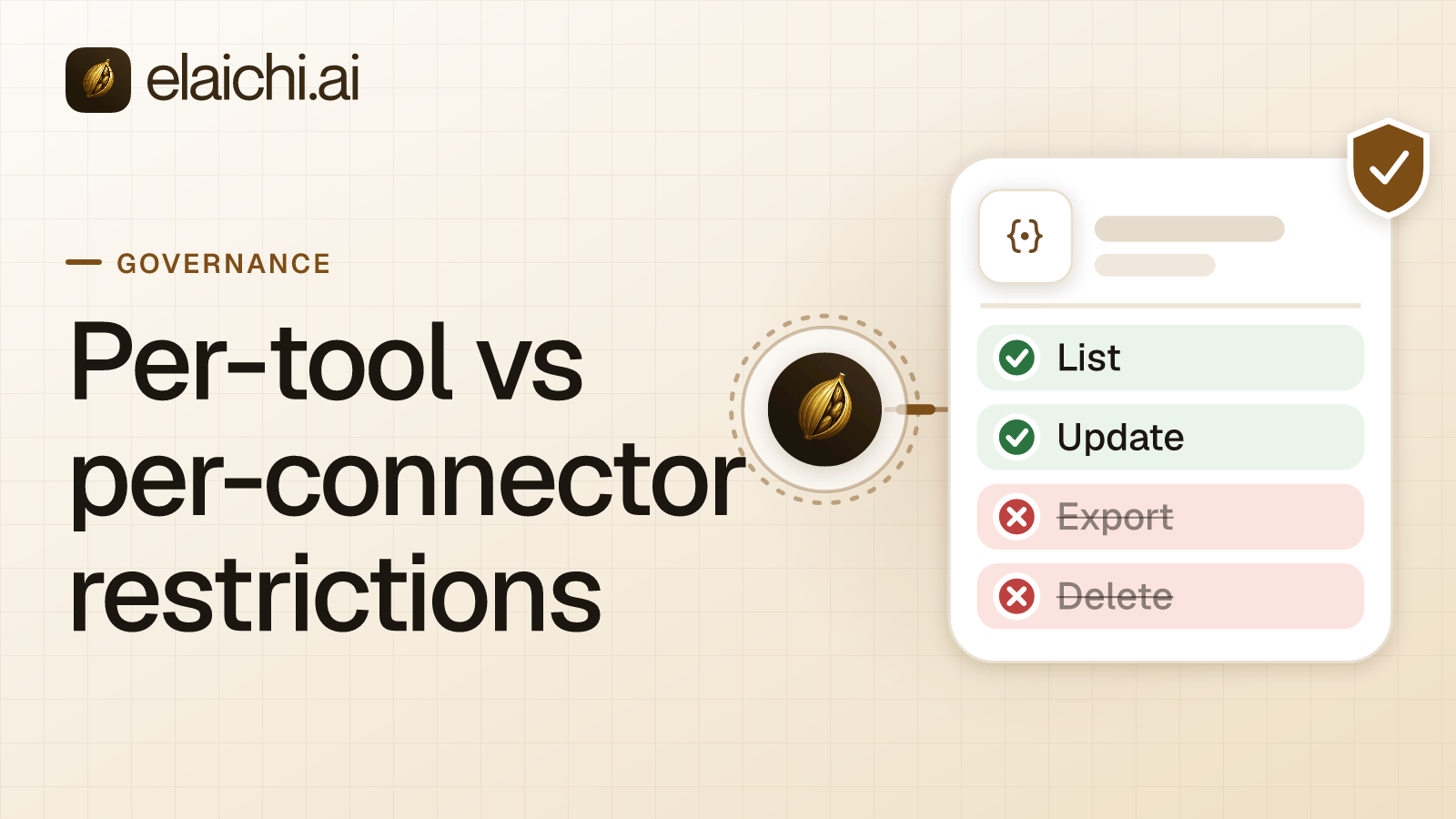
Leave Stripe on All tools and the whole app is blocked. Or choose Specific tools and use a preset: Block deleting blocks every tool that deletes, and Block all changes blocks every tool that makes changes while reading stays on. To block one tool, search for coupon and tick Create a coupon. The summary reads that the rule blocks 1 tool in Stripe. Choose Create restriction, and wait about two minutes for it to apply.
What happens when the teammate asks again?
In a new chat, the teammate asks Claude for a discount on a customer's next invoice. Claude finds the customer, then is told the tool is restricted for their role. It shows a button, Ask an admin for access, and creates no coupon. A block list blocks only what it names, so Claude also offered a balance credit instead of a coupon. Block that tool too if you want it closed.
What else can you block?
The same rule works for any app in the catalog. Block Gmail's sending tools for a Support role so it can read email but not send it. Block HubSpot's delete tools for Sales so it can update contacts but not delete them. Block all of BambooHR for the Member role so HR data stays with HR.
For the written steps, read the Set restrictions guide. To give a team a smaller set of tools instead of blocking some, watch Give each team only the tools it needs. To connect an app first, watch Connect your first work app to Elaichi.
Elaichi works with Claude, ChatGPT, Cursor, Microsoft Copilot and any MCP client.