Your recruiting lead wants Claude to answer two questions without opening the applicant tracking system. The two questions: which candidates sit at onsite stage, and which open roles have nobody scheduled this week. The ask for Greenhouse MCP access for Claude arrives as one line in a Slack thread. The work takes about an hour. Most of that hour goes on deciding what the model may not do. Recruiting records carry names, interview notes and pay numbers. A model that can read a pipeline can usually also reject someone, and recruiters will not notice the difference until it happens once.
Elaichi serves MCP at one address, https://api.elaichi.ai/mcp (MCP: MCP (Model Context Protocol) is the standard way an AI assistant calls tools in other apps). The same address serves every organization. Which organization, which person and which tools a client reaches comes from the OAuth grant behind its token, not from the URL.
How do you set up Greenhouse MCP access for Claude?
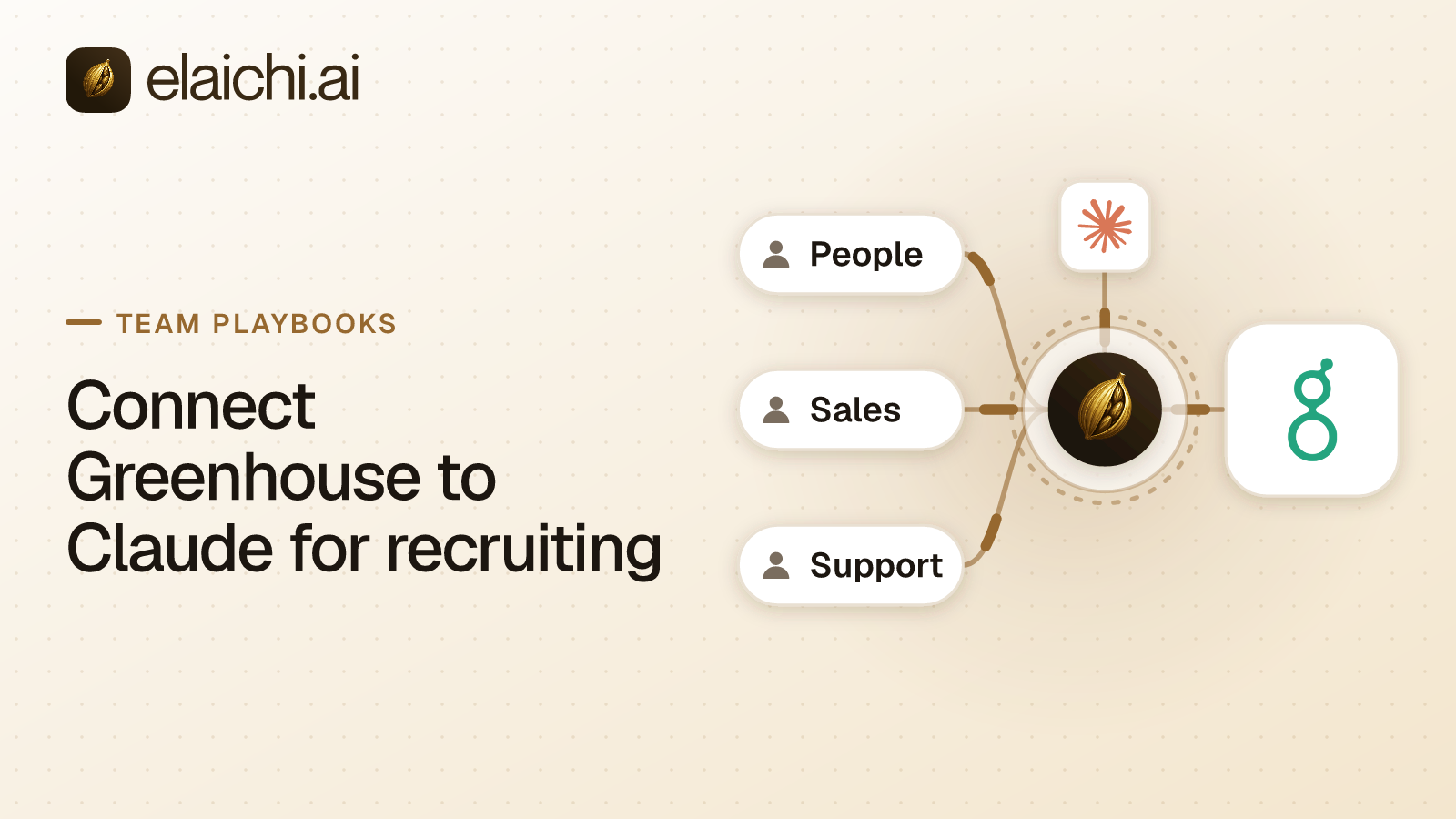
Three pieces, in this order: a Greenhouse connector in Elaichi, the restrictions on the recruiting role, then Claude. Doing Claude first means recruiters get full reach for an afternoon, which is the afternoon somebody tries a stage change.
On Claude Team and Enterprise plans, an Owner or Primary Owner adds a custom connector from Organization settings > Connectors. They click Add, hover over Custom and choose Web (Anthropic's own guide, checked October 2026). The URL you paste is Elaichi's, with no trailing slash and no query string. After that each member finds it under Customize > Connectors and clicks Connect to authenticate (same guide, checked October 2026). Each recruiter signs in to Elaichi themselves and approves their own grant, so every later tool call runs as that person.
Nothing has to be registered by hand first. Claude uses a Client ID Metadata Document only when the authorization server advertises support for one, and otherwise falls back to dynamic client registration (Anthropic's connector authentication docs, checked October 2026). Elaichi does not advertise that support, so Claude registers itself dynamically during sign-in.
Check the catalog before you promise a date
Open the Greenhouse connector page in Elaichi's connector catalog and read the tool list on it before you commit to a day. Catalog search forgives one typo: it shows exact matches first and looks for near misses only when there are none.
Each recruiter then connects the connector with their own sign-in, and you are into the restriction work. An app that is not in the catalog can be added by the organization itself. An Org Owner or Org Admin on Gold creates a custom connector, either from a config or by pointing Elaichi at a remote MCP server reachable over public HTTPS. Whether Greenhouse publishes such a server is a question for Greenhouse's own documentation. Elaichi makes no claim about it, and nothing here says that server has been tested with Elaichi.
Two cautions on the custom-connector path. connector:create is the only permission Elaichi flags as high trust. Governance binds a connector's identity, its slug and its declared forks, never the host it calls. A restriction on one connector therefore does not stop a second connector built against the same API. The second caution is the credential. If a connector signs in with an API key rather than a per-person OAuth sign-in, Elaichi holds one credential for that connection. Every call through it uses that credential, whoever makes the call. A connection shared with the whole recruiting team acts in the ATS as the account behind the key. Restrictions still narrow what each member can do through it, whatever the credential could do upstream.
Restriction one: hold the recruiting role to the read tools
Write one allow rule on the recruiting role naming the read tools on the connector. That is the rule that makes the difference, because no consent checkbox can do it. "Run your connected tools" covers running every tool in a connected app, deletes included. "Delete data and remove access" covers Elaichi's own deletes, not the app's.
An allow rule turns on the allowlist for its layer just by existing. Once the recruiting role carries any allow rule, that allowlist is on. Every connector and tool that none of its allow rules names is then blocked for that role, across the whole catalog. So the same role also needs whole-connector allow rules for the other apps recruiters use, the calendar and the document store included. They can be separate rules, because a layer's allow rules merge into one allowlist.
Two traps before you save. An allow rule that names nothing blocks every connector and tool for its target; its summary reads "Allows nothing. Every connector and tool is blocked." The second: an allow rule matches a tool by the operation Elaichi pinned when the rule was saved, never by the tool's label. Whoever edits a connector controls that label.
Restriction two: block the tools that message or advance a candidate
Add a block rule on the same role. Name the tools that email a candidate, and the tools that move one between stages or mark a rejection. A block always beats an allow in the same layer, so this survives a later edit that widens the allowlist by accident.
Block rules match by name or by operation, so renaming a tool cannot slip it past one. That is the reverse of the allow rule's behavior, and it is why blocks are the belt rather than the braces here. Do not use blocks alone. A layer with only block rules has no allowlist, so every write tool a rule does not name stays reachable. One new tool on the connector, and the gap is open.
Restriction three: keep offers and compensation on one role
In Elaichi, restriction targets are role or user only; the organization default is the absence of a rule, which means allow everything. If coordinators, sourcers and recruiters all sit in one team on one role, a rule cannot tell them apart.
So give coordinators their own role, or write member-level rules for the few people who need less. A member holds exactly one role, so each role is meant to be a complete persona. To combine two, an admin authors a custom role, which Gold includes. Rules aimed at one member need restriction:override, which among the system roles only Org Owner and Org Admin hold. A rule aimed at a member can only narrow what their role allows, and never replaces or loosens a role rule.
Save the rules, then wait. A role, team membership or restriction change takes effect in about two minutes. Grant revocation is different: revoking a grant fails that client's very next request.
Which audit query proves the restrictions hold?
Open the audit log, pick a date range, set Category to Assistant, set the actor to the recruiter, and search the connector's name. Connected-tool calls sit in the Assistant category, because their action is assistant.toolbox_tool. Filtering to MCP shows client grants, not tool calls. On the REST API the same query is GET /audit-log with q, category, actor, action kind and since; there is no end-time filter.
Each row's detail panel opens with where the call ran, for example "Using Claude, Emily Carter updated the page ... through the connection ...". It carries lines for Connector, Connection, Toolbox, What it did, Approval and Outcome. For a call from an MCP client, the Approval line reads "Allowed by the access Claude was granted". The console exports the current view as CSV with its filters applied, and stops at 10,000 entries rather than saving a partial file.
Reading the whole organization's log needs audit:view, held by Org Owner, Org Admin and Auditor. Auditor is a free, read-only role, so a compliance reviewer costs no billable seat. Without that permission a member still reads their own events, plus events on connections they own or can edit. The response says which scope it used.
Elaichi keeps 90 days of audit history. For longer, export to your own Datadog comes with the Black plan, which is launching soon.
What that query will not show you
A call a restriction refuses writes no audit row, because the refusal happens before any executor runs. So the log proves what ran, not what was stopped. Your evidence that the rules exist is separate: restriction writes are recorded as restriction.created, restriction.updated and restriction.deleted. Pair the two when an auditor asks.
One more gap to name honestly. Because every connected tool reaches Claude through Elaichi's execute_tool, a client-side permission set per tool sees them all as one name. Claude's own per-tool control cannot tell Greenhouse from your calendar once calls route through Elaichi. Per-app and per-tool control moves into Elaichi's restrictions. That is a real trade, and it is the right one only if you want the same rules in ChatGPT and Cursor too.
When your recruiting team does not need Elaichi for this
If recruiting is four people, Greenhouse is the only app involved, and Greenhouse publishes a connector or remote MCP server of its own, add it directly in Claude and stop there. On Team and Enterprise plans Owners add custom connectors for the whole organization. Claude's connector tool permissions take one of three settings, Always allow, Needs approval or Blocked, applied to a whole connector, a category of its tools or a single tool (Anthropic's connectors article, checked October 2026). That is per-tool control without a second vendor, and each person still signs in as themselves.
The case for routing through Elaichi starts at the second app or the second client. OpenAI says full MCP support in ChatGPT, including modify and write actions, is rolling out in beta to the Business, Enterprise and Edu plans (OpenAI's developer mode page, checked October 2026). One address that Claude, ChatGPT and Cursor all sign into, one set of role rules across the ATS, the calendar and the document store, and one audit log covering all of them. If you are still on app one, you are not the reader for that yet. The same decision in ChatGPT, with a different ATS, is worked through in the Ashby setup for recruiters.
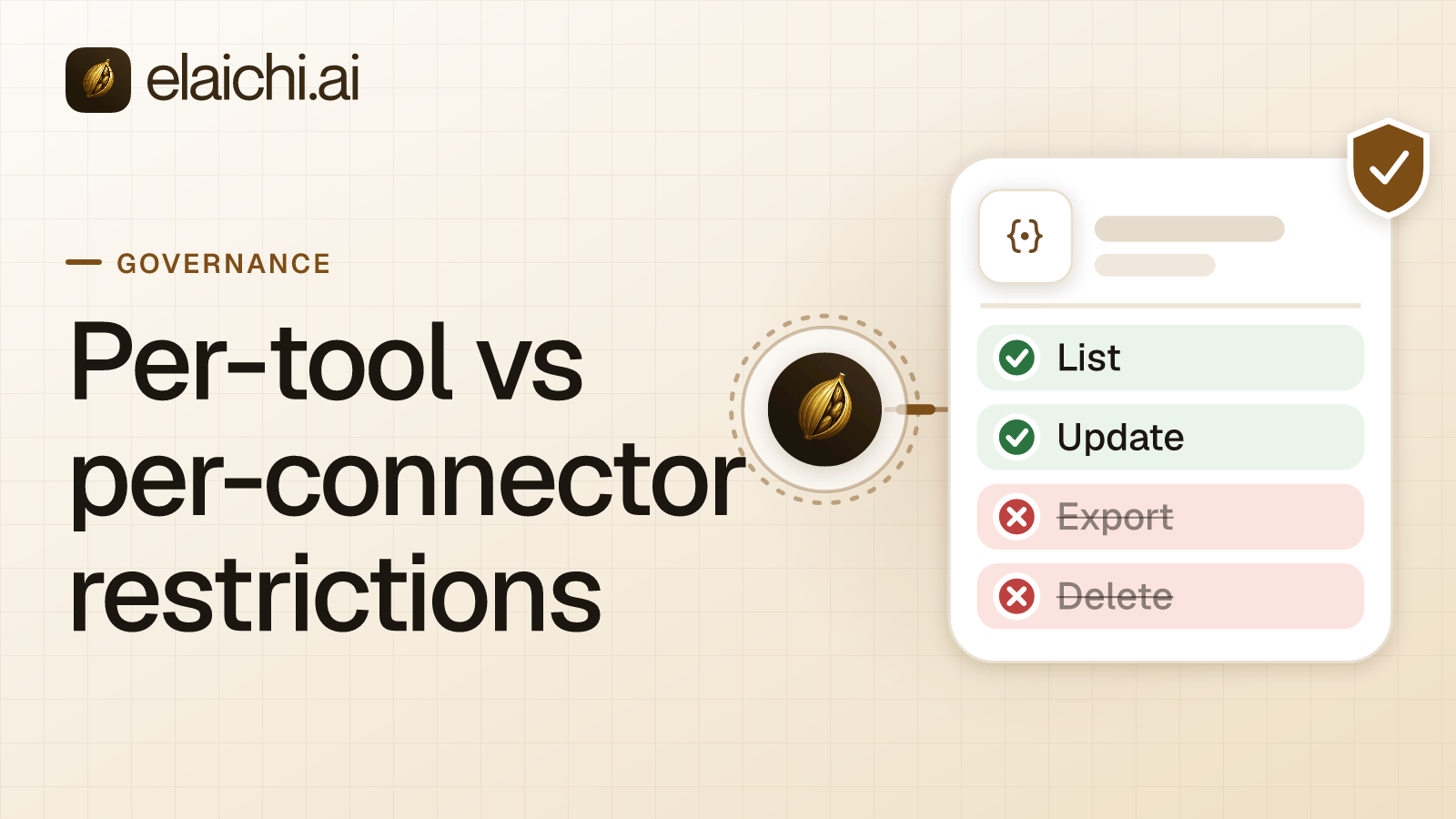
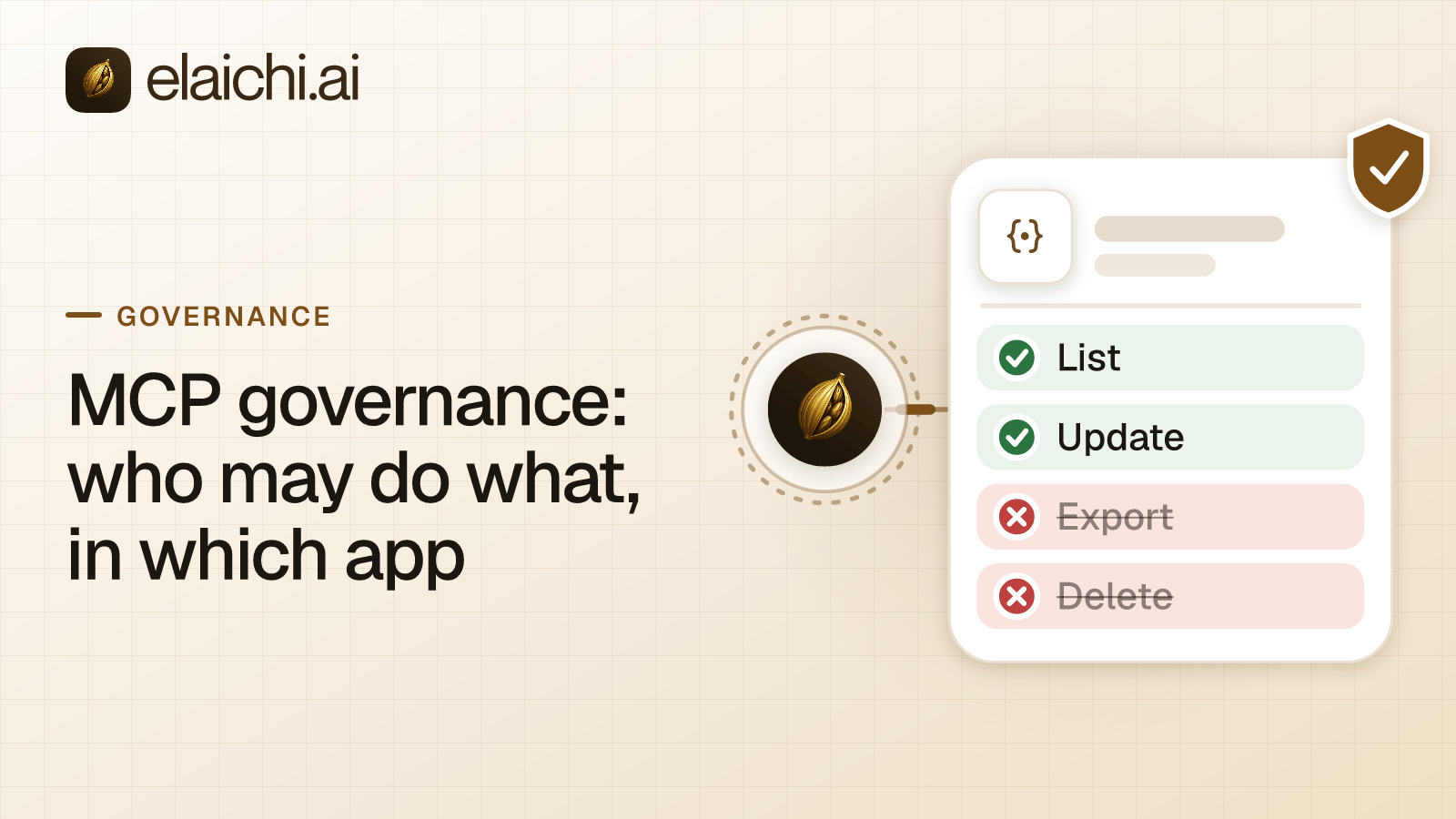
Next: the rules behind these three restrictions are set out in MCP governance, and the choice between naming one tool and blocking a whole app is worked through in six cases. For the same shape on payroll data, see how HR keeps Gusto readable but not runnable. The access model itself is laid out under governance use cases.