


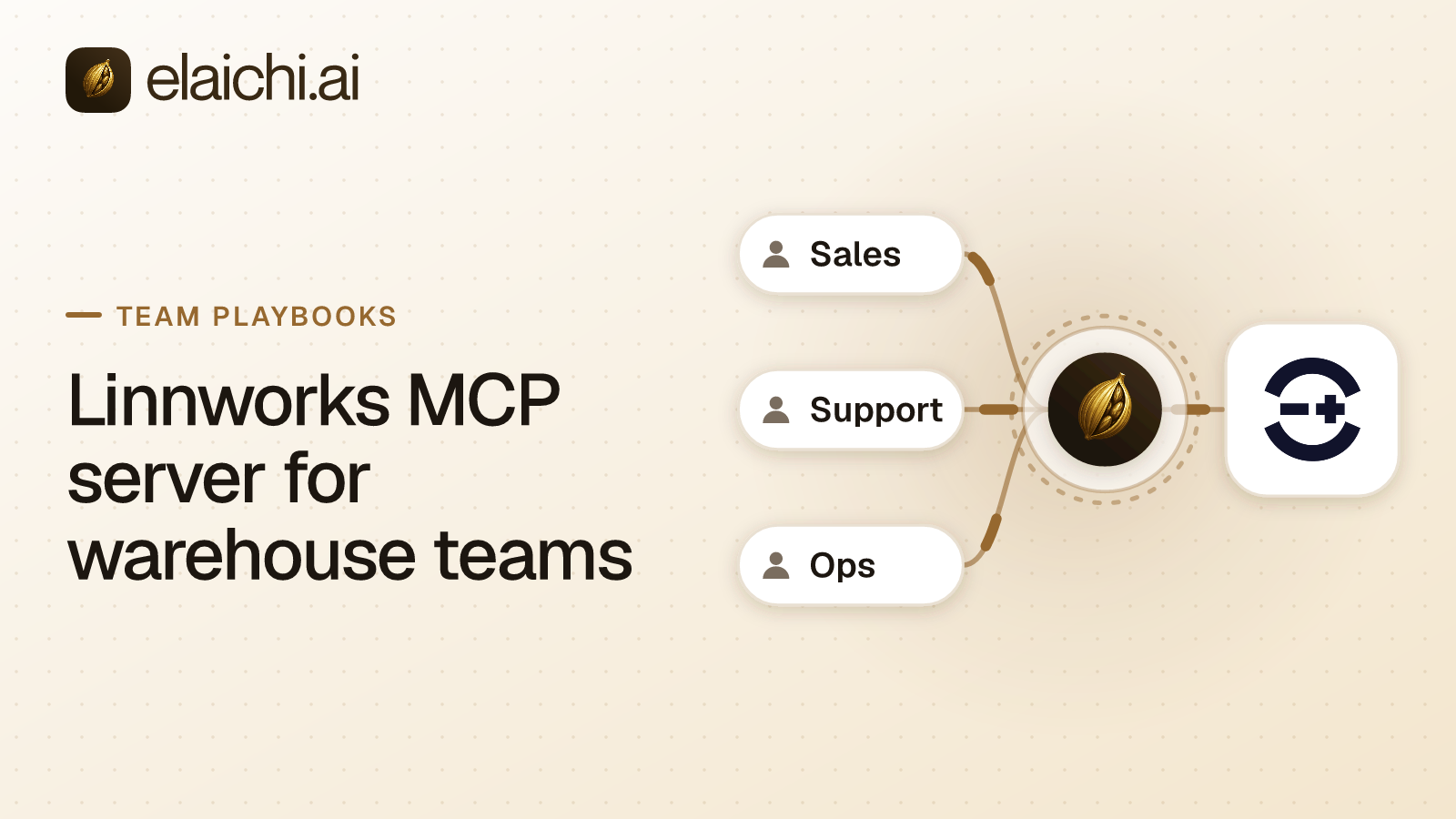
What should a Linnworks MCP server for warehouse teams do?
Yes, warehouse staff can ask Claude about orders and stock without being able to cancel anything. Connect Linnworks in Elaichi with its API key, add https://api.elaichi.ai/mcp in Claude, ChatGPT, Cursor or Microsoft Copilot, and hold the warehouse role to seven named read tools with a restriction on that role.
At 7am the shift lead wants three answers. Which orders are still unpicked, which carrier cut-off is closest, and which items are about to run out. In Linnworks that is a few screens and some filters. In Claude it is a sentence.
That is the appeal. MCP (Model Context Protocol) is the standard way an AI assistant calls tools in other apps. Behind the Elaichi address sits the Linnworks connector, one of 900+ in the Elaichi catalog.
The risk is the same size as the appeal. A warehouse system holds the orders that pay the wages. A model that can read an order can, with the wrong rights, cancel one.
What Linnworks documents about tokens and users
Linnworks hands out API access through an installed application. Its developer docs say you install a system app on a Linnworks account and receive a Permanent Token, then exchange it with the application ID and secret for a session token. The session token expires after 20 minutes of inactivity (checked November 2026, Linnworks API key guide).
The setup page adds that the owner of another Linnworks account can install the same app, and that session tokens go with requests made on behalf of that user (checked November 2026, Linnworks system app setup). Linnworks's docs do not list which calls each user right allows. Treat the Linnworks user's rights as the ceiling, and test it.
The practical point: the token belongs to an account, not to a shift. Whoever installs the app picks the identity every later call carries.
Whose credential runs a warehouse question?
One connection means one identity. Elaichi's Linnworks connector connects with an API key, and every call through a connection uses the account that connection was made with, whoever is calling. A connection the warehouse manager shares with the floor runs every packer's question on the manager's sign-in.
Two shapes work. Give each lead a connection built on a Linnworks account whose rights match the job, and keep it unshared. Or share one connection at use with a warehouse team and put the restriction on the role those people hold. That accepts a single fixed identity, and it is the simpler setup. It also means Linnworks' own history shows one user for every action, so the Elaichi audit log becomes the only record of who asked.
Which Linnworks tools should a picker or packer reach?
Start from the questions, then find the tools. A floor role usually needs these:
- list_all_linnworks_open_orders_filter_not_processed_open_orders for the unprocessed queue
- linnworks_open_orders_search_orders_search to find one order
- get_single_linnworks_open_orders_get_open_order_by_id for the detail
- list_all_linnworks_inventory_get_inventory_items and list_all_linnworks_inventory_get_stock_locations for stock and where it sits
- list_all_linnworks_dashboards_get_low_stock_levels for what is running short
- list_all_linnworks_picking_get_my_picking_waves for the person's own pick list
That is seven tools out of 397. The model finds them with search_tools, because connected tools are never listed one by one, however few there are. A packer asking where a SKU sits gets a search, then a call to the stock-location tool.
Which Linnworks tools stay off the floor?
Keep anything that cancels, deletes, edits quantity or moves money away from the warehouse role. The connector has 38 tools whose names start with delete, including delete_a_linnworks_orders_delete_order_by_id and delete_a_linnworks_inventory_delete_inventory_item_by_id.
Not every dangerous tool says delete. create_a_linnworks_orders_cancel_order cancels an order and has no delete in its name, so a name filter misses it. create_a_linnworks_orders_change_status moves orders between paid, unpaid, return, pending and resend. update_a_linnworks_inventory_update_inventory_item_level_by_id and update_inventory_update_inventory_item_stock_field_by_id rewrite stock figures. create_a_linnworks_inventory_add_scrap_item records stock as scrapped. The processed-order refund tools, such as create_a_linnworks_processed_orders_refund_shipping, move money.
Give those to the people who own stock counts and returns, on a separate role.
How do you write the restriction?
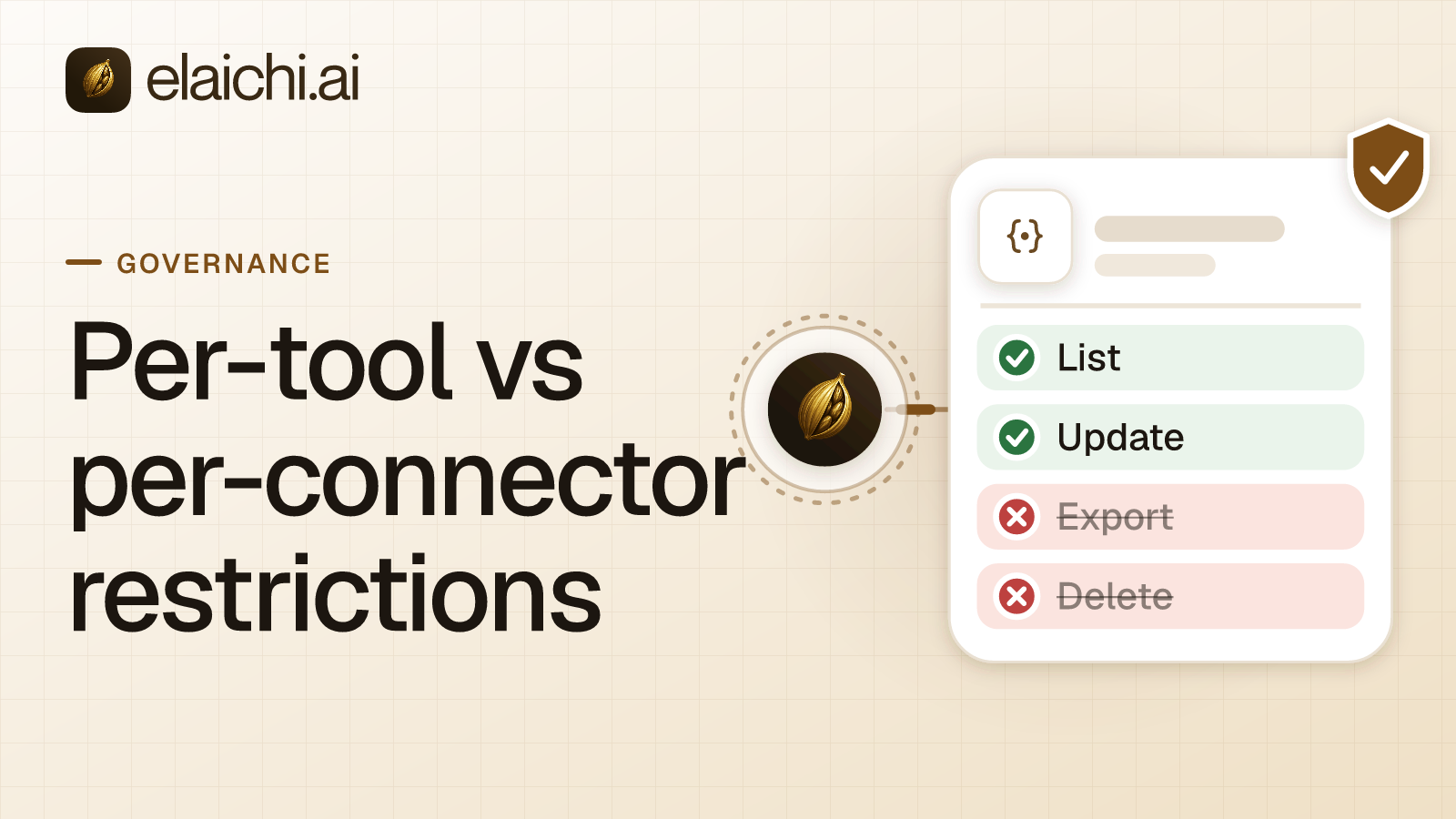
Write it on the role. In Elaichi, restriction targets are role or user only; the organization default is the absence of a rule, which means allow everything. There is no warehouse-wide target, so the rule goes on the role every floor member holds.
Holding a role to reads takes either an allow rule naming those reads, or block rules naming every tool that is not a read. The connector has 397 tools and 38 of them are deletes alone, so the non-read list is far too long to keep right. Seven names are not. Here the allow rule is the shorter list. One catch: once a role carries any allow rule, every connector and tool none of its allow rules names is blocked for that role. Add allow rules for Slack, Gmail or whatever else the floor uses, or those apps vanish for them. Blocking one tool against blocking the whole app covers when each fits.
A member's own rule can only narrow the role. The change takes effect within about two minutes. Faster still, revoking a share or disconnecting an account takes effect on the caller's next call.
When a packer reaches for a cancel, the answer is a refusal, and the search result says why. A restricted tool is left out of the tools Elaichi offers a client and cannot be called. Search still names it, flagged restricted, with no schema. They can file an access request from the client. An admin decides it under Governance, then Access requests, and no AI client can approve one.
What does the audit log keep?
One row for each connected-tool call that reaches execution. It records the person, the tool, the connector, the connection the call reached and the MCP client. A call refused earlier, by a restriction, writes no row.
So the log answers who looked at an order, and who ran a stock edit, but not who tried and was refused. For history beyond the in-app log, export to your own Datadog comes with the Black plan. Linnworks keeps its own order audit trail too, and list_all_linnworks_orders_get_order_audit_trails reads it from the same chat. See how long AI action history lasts before a stock dispute needs it.
How do you set it up in the client?
Each person adds https://api.elaichi.ai/mcp in Claude, ChatGPT, Cursor or Microsoft Copilot, signs in through the browser and approves their own grant. The address is the same for every organization. The grant decides which person and which organization the client reaches.
Test with a floor account, not an admin one. Ask for the unprocessed queue, then ask the client to cancel an order. The first should work. The second should come back restricted. If both work, the role holds no allow rule yet, and the allow rule on the warehouse role is the fix.
Is one Linnworks login enough for a small seller?
If one planner at a small seller is the only person who asks an AI about orders, one connection in one client does the job. The role rules pay off once pickers, packers and a shift lead all ask questions of the same warehouse data.
Elaichi does not decide which rights a Linnworks user holds. It narrows what a role may try. For who may do what across apps, read MCP governance and then check the catalog of connectors.
For the full tool list, open the Linnworks connector page. For the generic principle behind this, least privilege says each user should reach only the resources needed for their purpose (checked November 2026).


 Add one link to your AI app
 ChatGPT
 Claude
 Cursor
 Microsoft Copilot