


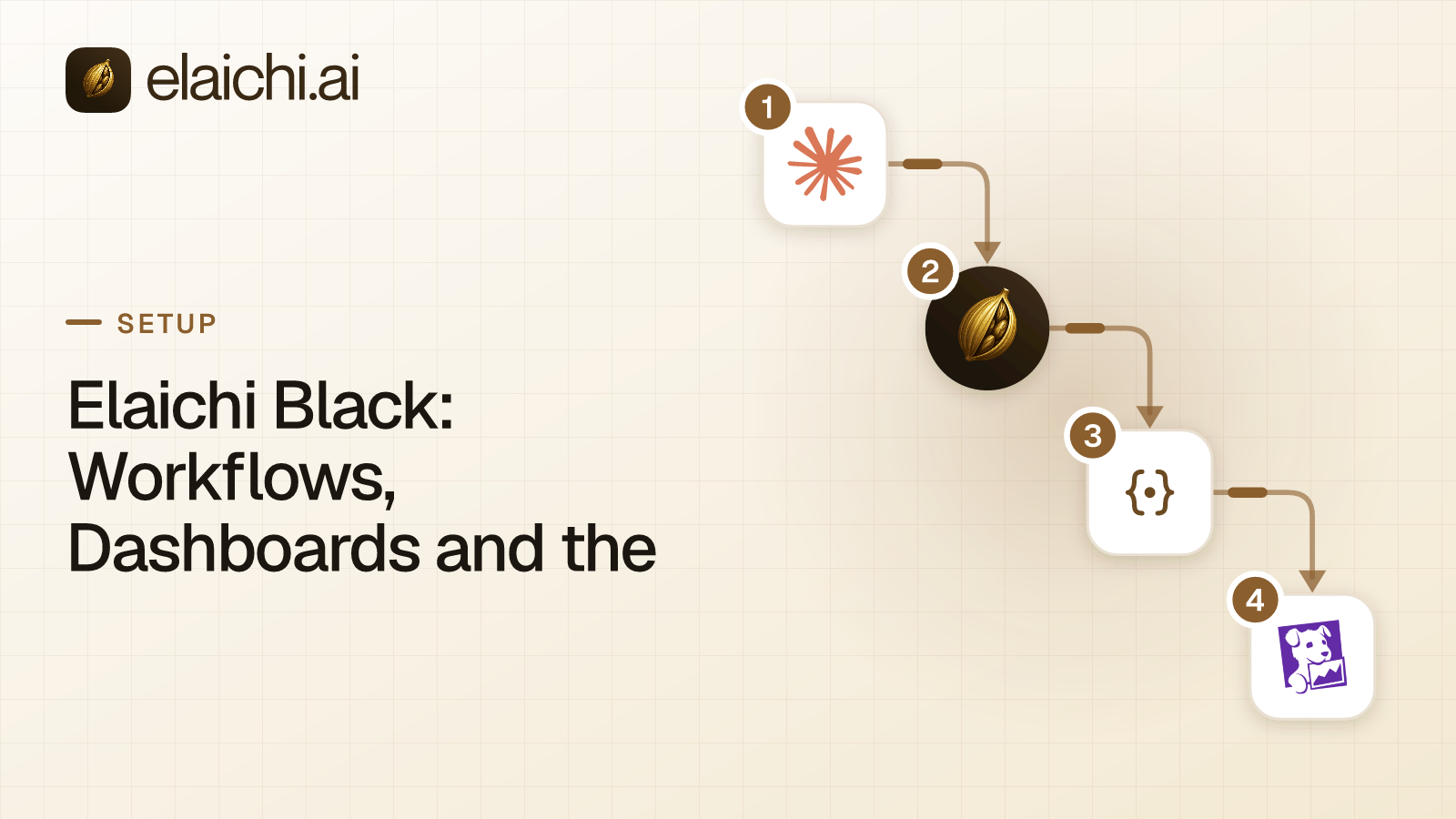
What does Elaichi Black add on top of Gold?
Elaichi Black is the plan for teams that want work done for them, not just tools they reach from a chat. It adds workflows, shared tables, dashboards, knowledge bases, spend controls and the Elaichi Agent to everything in Gold.
Gold gives a company one governed MCP endpoint. MCP (Model Context Protocol) is the standard way an AI assistant calls tools in other apps. Claude, ChatGPT, Cursor or any MCP client signs in to https://api.elaichi.ai/mcp. From there it reaches 650+ connectors, under roles, restrictions and an audit log (the record of who did what, and from where). There is nothing to host. One address serves everyone, and Elaichi runs most connectors itself.
Gold answers "who may reach what". Black answers the next question: what runs when nobody is typing. It adds workflows with approvals and webhooks, collections and dashboards, knowledge bases, spend controls, the Elaichi Agent, and logging destinations. A webhook is a message that another app sends when something happens in it.
Everything in one place, with any AI you already use
Elaichi Black keeps connectors, workflows, AI, shared tables and dashboards in one workspace, under one set of rules. The team brings whichever AI it already uses.
The chain runs end to end inside Elaichi:
- A workflow calls connectors and writes rows to a collection.
- A dashboard reads that collection. Or it calls read-only tools from a toolbox, a set of tools picked for a job, for live app data.
- A knowledge base answers what people and the Agent ask.
Claude, ChatGPT, Cursor or any MCP client builds, tests and reads all of it at https://api.elaichi.ai/mcp. Beside them, the Elaichi Agent offers the same workflow, collection and dashboard operations in the app and in Slack.
The Agent and workflow agent steps run on the organization's own keys, one key per provider. The providers are Anthropic, OpenAI, Fireworks AI, OpenRouter or an OpenAI-compatible gateway. Every chat model the organization adds appears in the Agent's picker and in each agent step's picker.
One place means one set of controls:
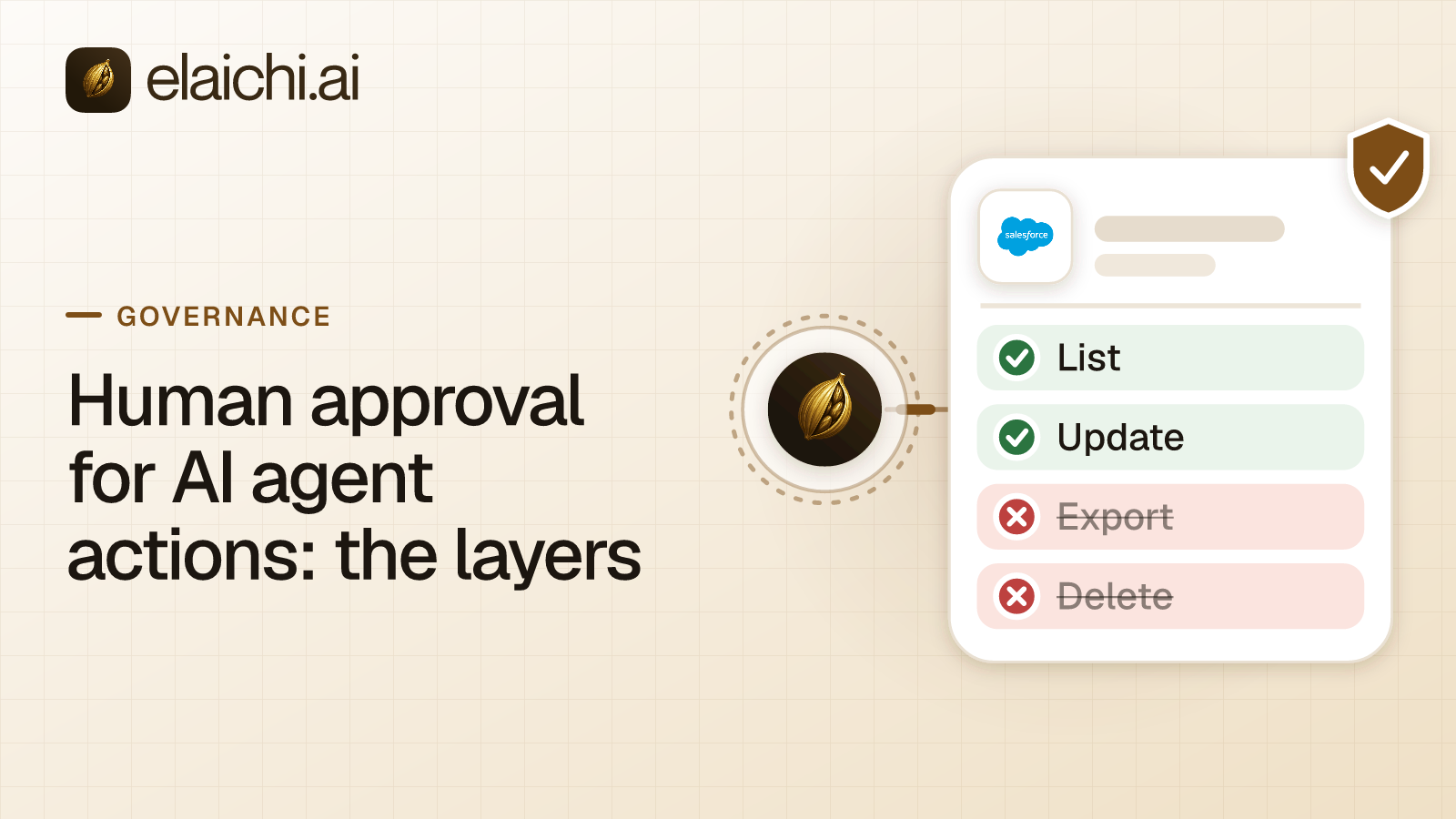
- Restrictions are checked at every place a member can reach a connector or tool, including listing, connecting, advertising, executing, the final outbound-request check and opening a stored tool file. Agent tool calls pass the same check. A workflow runs under its owner's restrictions. No AI surface can create or change a restriction.
- A restricted tool is left out of the tools Elaichi offers a client and cannot be called. Search still names it, flagged restricted, with no schema. From the client, the person can file their own access request for an admin to decide.
- Each audit row records where a call came from: app (the Elaichi Agent), mcp, api or console.
- A person decides what matters: workflow approvals, payment approvals and access requests.
- One bill: seats, plus usage pooled across the workspace.
Teams that build with code can use the Elaichi API reference. It documents workflows, collections, dashboards and knowledge bases, so a team can build on them with an API token.
Your own AI writes the workflow and tests it before it goes live
A team builds Black workflows with the AI it already uses. The AI writes the draft, and Elaichi validates it. A test run then tries it on real data with every write held back. Only then is it published and turned on.
Over MCP, the client uses the elaichi__automation__ operations. It reads schema and examples, writes with draft__create and draft__patch, and checks with draft__validate.
The Elaichi Agent can draft, validate, test-run, publish and turn on a workflow from the console or Slack. Validating and test runs need no approval there. Creating or changing a draft puts an approval card in front of the person. Publishing or turning on a workflow asks every time, and that choice can never be remembered.
The test run is dry_run over MCP and "Test run (changes nothing)" in the console's Run now dialog. That label is about writes. Tools that only read run for real, as the person who starts the test. Tool calls that write are recorded as what would have been called, and never sent. So are collection, state and knowledge writes. A notify step sends nothing. An approve step reports what it would ask, then carries on as approved.
Three details make the loop cheap to repeat:
- A test run costs no run time.
- A draft webhook trigger already has its address. Deliveries are kept as samples (up to five, for seven days), and a test run can replay one.
- Publishing makes a numbered version, and is refused while validation finds errors. Turning on is a separate step. An older version can be made live again from Details > Versions > "Restore this version".
How do Elaichi workflows run, and who do they run as?
An Elaichi workflow runs as its owner, a named person, from a trigger.
A workflow takes up to five triggers. There are seven types: manual, cron (a repeating schedule), a one-time schedule, webhook, Slack, a collection row change and another workflow's run. No trigger fires on an event inside a connected app. So a new Salesforce deal starts a run only when Salesforce sends a webhook. Each webhook address checks deliveries by signature, token or HMAC (a signature made with a shared secret). It has presets for GitHub, Stripe, Slack and Linear.
Real runs use the owner's connections, limited to the tools the published version declares. The owner's restrictions apply while the run goes, not only at the start. The owner is re-checked about every minute. If the owner can no longer act, the run fails with owner_invalid and the workflow is paused. So a workflow never runs on after its owner leaves. Over MCP, removing or suspending a member revokes every live grant in the same transaction as the membership change. A departed member's clients stop on the next call.
Failures are handled step by step. A step retries up to five attempts. A write whose outcome is uncertain is never sent twice. It ends as outcome_unknown for a person to check. Runs are kept for 30 days, and a failed run can restart from the failing step. Elaichi does not browse, search or fetch the web for a workflow or the Elaichi Agent. The workflows guide covers triggers and steps in full.
Who approves what in Elaichi?
People approve; the AI never approves its own work. An approve step asks named people or teams, plus the workflow's owner unless the step leaves the owner out. The run waits until one of them answers.
Requests reach approvers on the console's Approvals page, in Slack and by email. A Slack card carries Approve and Reject buttons only when no destructive step waits behind it. A step can bar the person who started the run from approving it. No AI client, Agent or workflow can approve or reject.
The same holds for access. Only a person in the console can approve or deny an access request, under Governance > Access requests. They confirm their identity again first. One caution for builders: a destructive step with no approve step before it is only a warning at publish, not an error. Put an approve step in front of it. Read why AI actions need a human sign-off for the wider case.
What are Elaichi collections for?
A collection is a shared table that people, AI clients and workflows all read and write. A workflow keeps what it finds there, and a dashboard reads from it.
One collection holds up to 20 tables, with 12 field types, up to 1,000,000 rows and 1 GB. A collection is shared at view, use (write and restore rows) or edit (change the schema and share). Row history is off until someone turns it on in Table settings. Then it keeps 90 days of changes by default. The collections and dashboards guide goes field by field.
How do Elaichi dashboards and public links work?
An Elaichi dashboard charts a collection or live data from a connected app. It is built as a draft before anyone else sees it. It opens from Automate > Dashboards, with "New dashboard".
A dashboard holds up to 10 pages and 100 widgets: metrics, charts, tables, forms, actions and more. A widget reads a collection, a read-only tool from a toolbox, or workflow runs. Edits land in the draft. "Publish" makes the draft what everyone with access sees. Workflows use the same draft-then-publish pattern.
A public link shares a copy, not live access. The copy is captured with the publisher's access, and a visitor never runs a data source. Public links are off until an admin turns them on. A link expires after 90 days by default, a dashboard has at most five, and any link can be revoked. An AI client can list, refresh and revoke a link, but cannot create one. Sharing a dashboard inside the workspace never widens data access. Every widget runs as the person looking at it.
What does an Elaichi knowledge base hold?
A knowledge base holds short text documents that people, AI clients, the Agent and workflows search. It sits under Connect > Knowledge in the console.
Each document has a title, a markdown body of up to 64 KB, optional alternative terms and an optional source link. A workspace holds up to 200 bases of up to 5,000 documents each. Search is full-text keyword search, with titles ranked first. Managers see "Searches that found nothing", which shows what to write next.
Trust stays with a person. A document a workflow, an AI client or the Agent writes is saved unreviewed. Only a person in the console can mark it reviewed. A workflow agent step's automatic lookup uses reviewed documents only. The knowledge base guide shows the review loop.
How do spend controls and payment approvals work?
Spend controls cap what workflows use and what they pay. They are read-only for every AI client and the Agent, so the AI cannot raise its own limit.
A workflow takes its own limit ("Set a run-time limit"). The workspace sets a "Usage budget" in Settings > Billing. Each limit carries up to five alert levels (50, 80 and 100 by default). Alerts go to the workspace's Slack or email notifications. At a hard limit:
- A manual run is refused with
usage_limit_reached. - A scheduled run is skipped.
- A run already going stops before its next step.
Setting a usage limit needs spend:manage, and the budget needs billing:manage.
Payment controls live in Governance > Payment approvals. A step that calls a payment tool must declare the amount, currency and payee. The payment policy sets, per currency, the amounts that need one or two approvals. Two approvals come from two different people. The person who started the run and the workflow's owner can never approve a payment. A payment approval is never answered from Slack. Changing the payment policy or a cap needs a fresh identity check. A spend cap limits what one payment tool may pay per day, week or month. Read the spend controls guide for the setup.
What is the Elaichi Agent, and whose AI keys does it use?
The Elaichi Agent is the AI assistant inside the Elaichi console and in Slack. It runs only on your organization's own AI provider keys. Elaichi supplies no model key for it, and Agent chat uses none of Black's run minutes.
An admin adds keys in Settings > AI models. Elaichi checks each key with the provider before saving it. It stores the key encrypted at rest and never returns it. Setting keys needs assistant:manage, held by Org Owner and Org Admin. The AI provider key guide shows where each provider issues one.
The Agent opens from the "Agent" row at the top of the sidebar. Before a write, it shows an approval card with "Allow once" and "Deny", unless the person chose Always allow for that operation. The Agent also scans tool results for prompt injection, which is text that tries to steer the model. That check can stop a write. The prompt-injection write gate lives in the Elaichi agent window and does not apply to a raw tool call.
In Slack, people tag @Elaichi in a channel, a direct message or Slack's agent panel. Connecting a Slack workspace happens in Settings > Organization > Slack, and needs assistant:manage. The Agent sits beside Claude, ChatGPT, Cursor or any MCP client, not as one of them. It has no web search. The Elaichi Agent guide covers models and Slack.
Where do Elaichi audit logs go, and who holds the keys?
Elaichi keeps 90 days of audit history, and Black adds logging destinations for anything longer. In Elaichi, export to your own Datadog comes with the Black plan.
Destinations live in Settings > Organization > Logging, under "Add destination". A Datadog destination needs a Datadog site (US1, US3, US5, EU or AP1) and an API key. It can filter by log type: tool calls, sign-ins or admin changes. Connected-tool calls arrive as the admin log type, so keep the Admin box ticked to receive them. Forwarding is retried up to five times. An event that still fails is not delivered, so keep the in-app log as the record.
Key custody is about who holds the encryption keys. For key custody, customer-managed keys in AWS KMS come with the Black plan. They are set up with Elaichi's team, not from a console switch. See the Datadog audit log guide.
What does Elaichi Black cost?
Elaichi Black lists at $24 per user per month, or $18 per user per month billed yearly ($216 a year). These are US-dollar list prices. Black is also billed in many local currencies, so the pricing page shows your own price.
You pay per user, never for the AI apps working for them, as the pricing page puts it. Seats count active members, except people whose only role is Guest, Billing Admin or Auditor.
Usage sits on top of seats, after a free monthly allowance:
| Meter | Free each month | Past the allowance |
|---|---|---|
| Run time | 1,000 run minutes | $0.02 a run minute |
| Collection storage | 1 GB-month | $5 a GB-month |
The allowance is pooled across the workspace, resets on the 1st (UTC) and does not roll over. Only working time counts. Waiting for a person or a timer is free, and test runs cost nothing. Agent chat runs on your own AI provider key and books no run minutes. Knowledge bases do not count toward storage.
The 14-day free trial is the Black plan itself. Every Black feature is on during it, including workflows, collections, dashboards, knowledge bases and the Elaichi Agent. It needs no card to start. Its one limit is usage: during the trial, the free allowance is a hard stop. Runs are held at 1,000 minutes, and collection writes that add data are refused at 1 GB. Buying Black lifts both once the card is saved. Its seats are first charged when the trial ends. A workspace that buys nothing moves to the free Personal plan, and nothing is deleted.
A paid Gold workspace upgrades in place with "Upgrade to Black" in Settings. It is a prorated price swap, in the currency it already pays.
Should you buy Black or stay on Gold?
Buy Black when work has to run without someone typing a prompt. Stay on Gold when your people only need governed access to their apps from Claude, ChatGPT or Cursor.
Gold lists at $15 per user per month in USD, or $10 per user per month billed annually. It covers sharing, custom roles, restrictions, custom connectors, SSO and SCIM. SSO lets people sign in through the company's identity provider, and SCIM keeps the member list in step with it. If the goal is "sales reads HubSpot from Claude, and nobody deletes a deal", Gold does that job.
Black earns its price when:
- A report or triage should run on a schedule.
- A write needs a named approver.
- Leaders want a live dashboard without a BI (business intelligence) project.
- People want an assistant in Slack.
- Security wants audit events in Datadog.
You may not need Black at all. A team already deep in another automation platform, with little need for governed AI access, can stay there. One person automating their own accounts fits on Personal.
How does Elaichi compare with other automation tools?
Each line gives the other product's billing unit from its own pricing page, checked November 2026, and links a full comparison.
n8n prices its plans by monthly workflow executions, with unlimited users on every plan (checked November 2026). Read Elaichi vs n8n.
Zapier prices its plans by monthly task tier, and its Team plan includes up to 25 users in one price (checked November 2026). Read Elaichi vs Zapier.
Make prices its Make Plan by credits per month, set with a slider on its pricing page (checked November 2026). Read Elaichi vs Make.
Workato lists editions without prices, and measures usage as task consumption (checked November 2026). Read Elaichi vs Workato.
Power Automate lists its Premium plan at $15.00 per user per month, paid yearly, for cloud flows (checked November 2026). Read Elaichi vs Power Automate.
Elaichi Black prices per seat plus working minutes and storage. Every workflow runs as a named owner, under the rules that already govern Claude, ChatGPT and Cursor.
Start your 14-day Black trial
The fastest test of Elaichi Black is one workflow your team does by hand. Let your own AI draft it, test-run it on real data, and publish it.
- Sign up at app.elaichi.ai/signup. The workspace starts on the Black plan itself, with every feature on and no card.
- Connect the apps the workflow touches from the connector catalog.
- Point Claude, ChatGPT, Cursor or any MCP client at
https://api.elaichi.ai/mcp, or open the Agent, and ask for the workflow. - Read the test run's held-back writes, then publish and turn it on.
For the access rules underneath Black, start with the MCP control plane explainer, or compare plans on the pricing page.


 Add one link to your AI app
 ChatGPT
 Claude
 Cursor
 Microsoft Copilot