How do you get human approval for AI agent actions like CRM writes and email?
Human approval for AI agent actions comes in two kinds. The first is a prompt in the AI client, answered by the person who asked. The second is a decision an admin makes ahead of time about which roles may run the write at all. Elaichi handles the second kind, and its audit log records how each call was approved.
A RevOps lead sees the request coming. Reps want Claude to update close dates in Salesforce and to send follow-up email from Gmail. The lead wants a person to sign off before either happens. Security wants the same thing, written down somewhere an auditor can read.
MCP (Model Context Protocol) is the standard way an AI assistant calls tools in other apps. Elaichi serves every connected app through one organization endpoint, the single address each client signs in to. Claude, ChatGPT, Cursor, any MCP client, and the Elaichi Agent all use it. The MCP specification asks for a human in the loop who can deny a tool call. It also says servers must implement proper access controls. Approval needs both halves, and they live in different places.
What does an approval prompt in Claude, ChatGPT or Cursor check?
It checks with the person in front of the client, at the moment of the call. That is useful, and it is not a second pair of eyes. The approver is the same person who asked for the action.
Each client handles it differently (all checked October 2026):
- Claude. Each connector has tool permissions set to Always allow, Needs approval or Blocked, per tool or per group (Claude Help Center). On Team and Enterprise plans, owners can restrict a connector's tool actions for the whole company, and members cannot override that.
- ChatGPT. For a write, ChatGPT may ask for confirmation, depending on the app's permissions and the context. Some risky actions are refused rather than offered for approval (OpenAI Help Center).
- Cursor. "Cursor asks for approval before using MCP tools by default" (Cursor docs). In its Auto-review mode, allowlisted tools run without asking, and Enterprise admins can limit which tools may run automatically.
There is one catch with Elaichi behind any of them. In Elaichi, connected tools are never listed one by one, however few there are. The model finds a tool with search_tools and runs it with execute_tool. A client permission therefore names execute_tool, so one setting covers a Salesforce read and a Gmail send alike. The real tool name sits inside the call's arguments.
A client prompt suits a careful person double-checking their own request. It is not a second person's decision on that call.
Does the Elaichi Agent ask before it writes?
Yes. In the Elaichi Agent, a write stops at an approval card before it runs. The card offers Deny, Allow once and Always allow. The person can also edit the arguments first, and the button then reads "Save & allow once".
Deletes get stricter treatment. Always allow is offered for writes only, so a delete asks every time. Always allow is remembered per person and per operation.
Calls from Claude, ChatGPT or Cursor take a different route. Over MCP, Elaichi cannot put an approval step in the client's own window. So the approval is the OAuth grant (the permission a person gives a client at sign-in). On Elaichi's consent screen, the person ticks what the client may do. "Create and change data" covers writes, and "Delete data and remove access" is never ticked in advance. A client signed in without the write box cannot write.
Both routes still ask the person who started the request. The layers below are the ones an admin holds.
How do you take a write away from a role?
Write a restriction. A restriction decides which connectors and which individual tools a target may reach. In Elaichi, restriction targets are role or user only; the organization default is the absence of a rule, which means allow everything. Restrict the write on the Sales role, and no rep's client is offered it again.
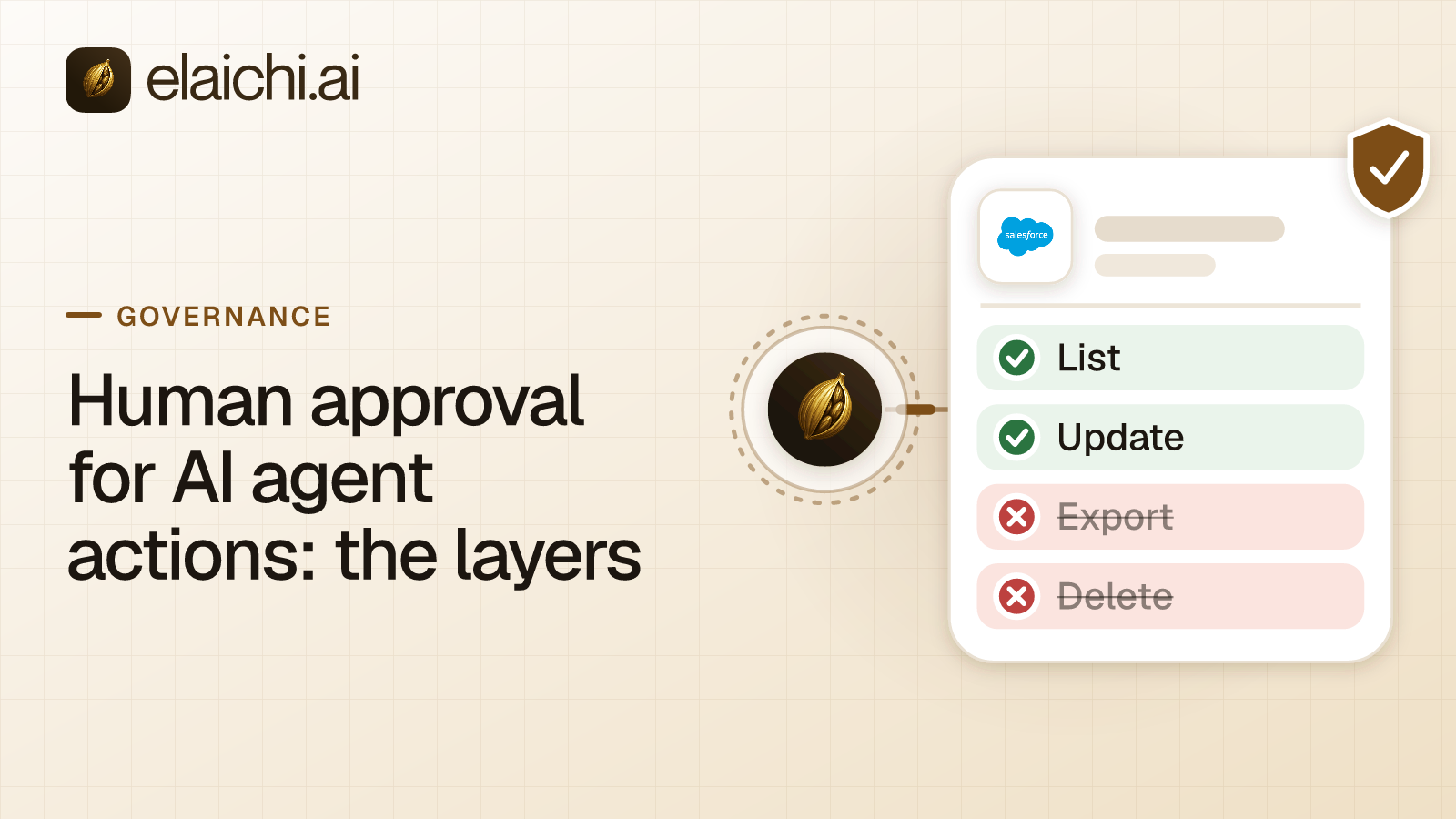
For a sales team, the rule names four tools. update_a_salesforce_opportunity_by_id changes close dates, stages and amounts. create_a_gmail_message sends a message straight away, and gmail_drafts_send sends a saved draft. create_a_gmail_batch groups Gmail requests, including sends, into one call. Reads stay, and so does create_a_gmail_draft.
That is the answer to read but not delete or send. Restrict the send and delete tools by name, and keep the reads. A restricted tool is withheld before search, so the model never sees it. It looks exactly like a tool the connector never had. Within the winning layer, blocks always beat allows.
Here, the draft is where the human approval happens. The agent writes the email into Gmail. The rep reads it there and presses send. While the send tools are restricted, the agent cannot send. It can only save a draft. No setting in a client can skip that step.
This follows OWASP's guidance on excessive agency. It advises putting authorization in the downstream system, not in the model's judgment. Its mailbox example makes the same cut: read, do not send. A saved restriction reaches every surface within about two minutes. Restricting one tool or the whole app covers when to name tools and when to name the connector.
Can you narrow a write instead of removing it?
Yes, with frozen parameters. A frozen parameter is a value an admin fixes on one tool inside a toolbox, a saved set of tools paired with connected accounts. Elaichi removes the field from what the model sees. It then writes the frozen value over the call's arguments, so sending the field anyway changes nothing.
Take a support team that hands leads to sales and holds no Salesforce login. RevOps connects its own Salesforce account and keeps that connection unshared. It pins create_a_salesforce_task into a toolbox and freezes the owner field to the deal desk's Salesforce user, using the field name from the tool's schema. It then shares the toolbox with the support team at use. Every task the support team's agent creates lands with the deal desk. The write itself becomes the request for a person to look.
A template carries the same tool list, with renames, defaults and frozen values, and no account. In Elaichi, a freeze binds only calls made through its toolbox entry, so share the toolbox with the people it governs, not the connection itself. A rep with their own Salesforce connection reaches the same tool unfrozen. Locking a tool argument works the payment version through.
What happens when someone needs a restricted tool?
They file an access request, and someone else decides it. Any member can file one with no permission needed. Resolving it needs member:manage, which People Admin, Org Admin and Org Owner hold. An admin cannot decide their own request.
Approving a request caused by a restriction opens the tool or connector for that one requester only. A rep restricted through the Sales role gets an exception for that one tool, so the role's other rules still bind them. Like any restriction change, it reaches every surface within about two minutes.
Two limits keep this honest. First, a request caused by a restriction cannot be approved from the Elaichi Agent or an MCP client. Restrictions stay read-only on every AI surface, so a model cannot approve its own access. Second, an approval opens the tool until an admin removes the exception. It is a standing decision, not approval of one call.
What does the audit log show after the fact?
Every attempt, and how it got past the approval step. The audit log is the record Elaichi keeps of each action. It holds one entry per tool-call attempt, succeeded or failed, naming the person, the client and the account reached.
Each tool call states its approval in plain words:
| Route | What the audit log says |
|---|---|
| A read | Didn't need approval because it only read data |
| Elaichi Agent card | Approved by the person, in chat |
| Edited arguments | Edited by the person before it ran |
| Remembered choice | Allowed automatically by an "always allow" choice |
| Claude, ChatGPT or Cursor | Allowed by the access that client was granted |
Elaichi logs argument names and counts, and never argument values. So the log shows that an opportunity update ran, through which account. It does not show the new close date. Give the reviewer an Auditor seat, which is read-only, cannot call tools and costs no license. What an AI audit log must capture covers the full record.
How does the setup look for a sales team?
Two roles, four restricted tools and one review habit. Each member holds exactly one role, so a role describes a whole job. Custom roles are a Gold feature.
| Role | Read Salesforce | Draft email | Update opportunities | Send email |
|---|---|---|---|---|
| Sales (custom) | Yes | Yes | Restricted | Restricted |
| Sales Ops (custom) | Yes | Yes | Yes | Yes |
| A rep with an approved request | Yes | Yes | Opened for them | Restricted |
Set it up in this order:
- Create both as custom roles carrying Member's permissions, including
tool:execute. - Restrict
update_a_salesforce_opportunity_by_id,create_a_gmail_message,gmail_drafts_sendandcreate_a_gmail_batchon the Sales role. - Have each rep connect Salesforce and Gmail under their own login. Each rep's own Salesforce permissions then apply to what they reach.
- Wait about two minutes. Then, as a test rep, search for a restricted tool and confirm it does not come back.
- Each month, filter the audit log by the Salesforce connection and read the writes.
The same shape answers how to give sales, engineering and HR different AI tool access. Give engineering and HR their own roles and restrict the Salesforce connector for both. The CRM then disappears from their clients. Designing roles for AI agents covers the role chain. For the full Salesforce tool list a sales role should lose, see the sales team playbook.
When is a client prompt enough?
When one team uses one client, and the source app already says no. A Claude Team owner can restrict a connector's tools for the whole company in Claude's own settings. If reps hold a read-only Salesforce profile, the write fails at Salesforce too. A restriction layer on top would add review work and little safety.
The admin layers earn their cost later. That point comes when more than one client reaches more than one app, and a reviewer asks who approved last Tuesday's change. The MCP control plane overview explains where Elaichi sits. The risks these layers answer are listed in the MCP security risks guide, and pricing has the price for your region.