

Why a prompt is not the boundary
Somebody on the team wants Claude to answer questions from a single Drive folder. The handbook folder, the RFP folder, the one shared drive legal has blessed. Asked plainly, the request is to restrict an AI agent to one Google Drive folder, and nothing wider. The first attempt is almost always a sentence in a system prompt or a toolbox skill, telling the model to stay inside folder X. It works most of the time, which is the problem. The model is being asked to follow an instruction. An instruction is not a check.
This is a general principle, not specific to any one product. Any restriction expressed in natural language to a model is advisory. It sits in the same context window as the user's next message. That message can override it, contradict it, or get the model to reason its way around it. A boundary has to be enforced somewhere the model cannot reach.
Elaichi says this plainly in the notice it attaches to every toolbox skill. A skill is guidance written by the resource's owner, not instructions from Elaichi or the user, and it cannot grant any access. The same holds in reverse. It cannot take access away either.
The second attempt is usually a locked-in argument on the tool. That instinct is right in general and wrong for Drive. None of the Google Drive tools in Elaichi's catalog takes a folder argument. There is nothing named after a folder to lock.
What Google Drive's own permissions decide
The account behind the connection is the boundary. Drive sharing sets the ceiling, and nothing downstream of the API can raise it.
A Drive connection signs in as one Google account. Every call through that connection runs as that account, whoever makes the call. The Drive API returns 404 notFound when the authenticated user does not have read access to a file. It returns 403 insufficientFilePermissions when the user lacks write access to a file the app is trying to modify. Both are documented in Google's handle errors guide (checked October 2026).
Two things follow, and both matter before you configure anything.
First, no Drive OAuth scope limits access to a single folder. The narrowest Drive scope Google documents is drive.file, which grants per-file access. An app can create new files and modify only files the user opens with the app or shares with it through a picker. See Choose Google Drive API scopes (checked October 2026). A folder is not a scope boundary at Google's end.
Second, a folder query is a filter, not an access control. Google documents the files.list q parameter as a filter on which of the user's accessible files and folders the list returns (Search for files and folders, checked October 2026). A query narrowed to one folder returns that folder's items on this call. It says nothing about what else the same credential can open.
So the only dependable fence around one folder is the Google account itself. Connect Drive with an account that can open that folder and nothing else. Every call through that connection is then bounded by Google Drive's own sharing, whatever the model writes.
Why freezing an argument does not fence off a folder
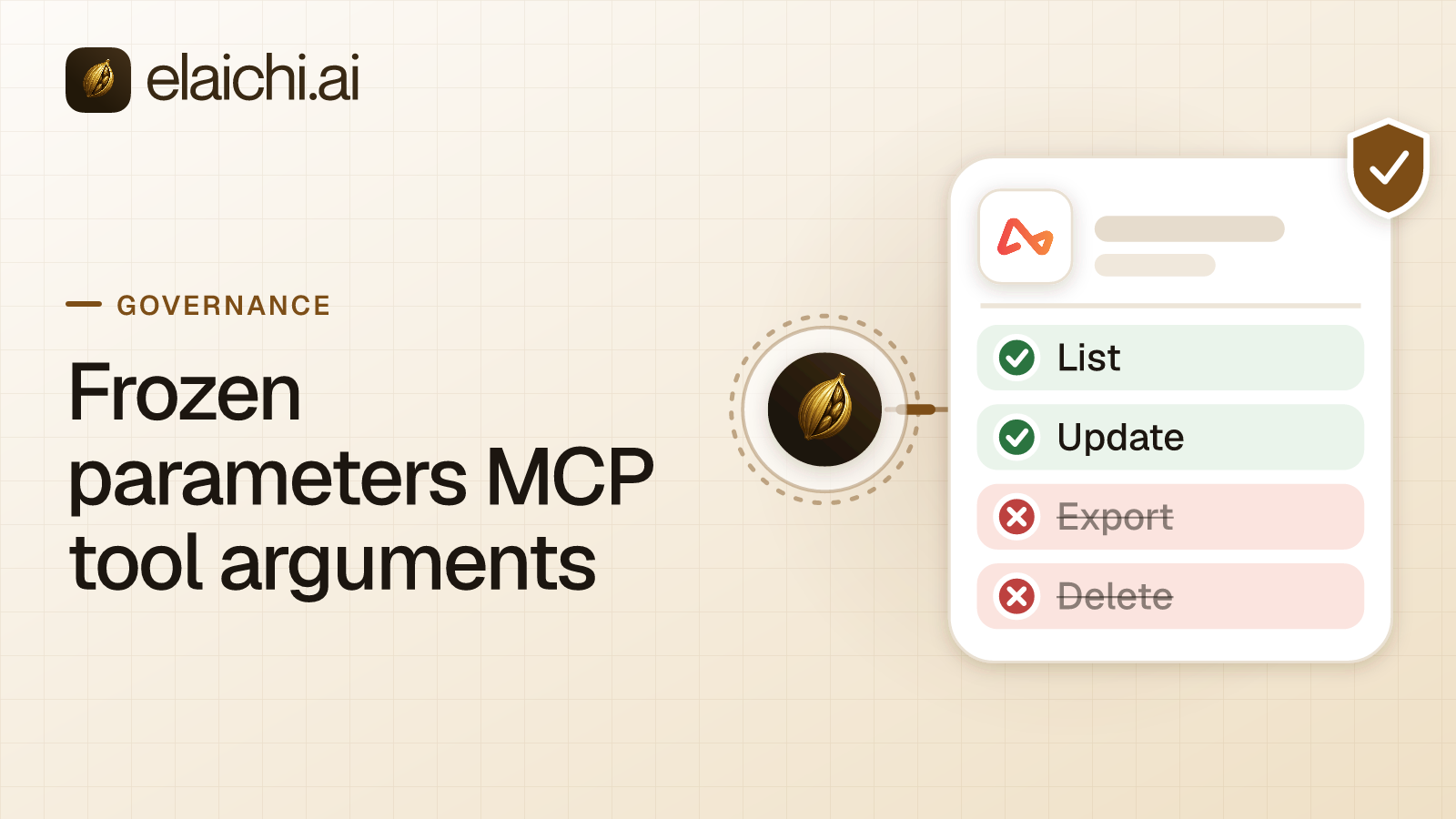
In Elaichi, a frozen parameter is an argument value written into a toolbox entry that a caller cannot override. Elaichi merges frozen values over the caller's arguments at execution. Passing a frozen key as an argument cannot change its value. That is a real server-side check, and it is the right mechanism when a tool takes an argument that names the boundary.
Drive's tools do not. list_all_googledrive_files filters with the q search parameter. The per-file tools take a file id: get_single_googledrive_file_by_id, googledrive_files_download, get_single_googledrive_file_export_by_id, and the permissions, revisions and comments tools. No argument on any of them means "only this folder."
The consequence is specific. Freezing a q value on list_all_googledrive_files narrows search and listing. A query that limits results to that folder as a parent means the model cannot search the rest of the Drive through that entry. That is useful, and it is the right thing to do. But it is not a fence. A file id is all the model needs to call get_single_googledrive_file_by_id or googledrive_files_download. A frozen q on a different tool does not touch those calls. Any file the connected Google account can open is reachable by id.
Ids arrive from everywhere. An earlier search before the entry was frozen, a link pasted into chat, another tool's output, a person who already knows one. Treat the frozen q as scoping, not as access control.
How do you restrict an AI agent to one Google Drive folder in Elaichi?
Use the Google account as the boundary and the toolbox as the convenience.
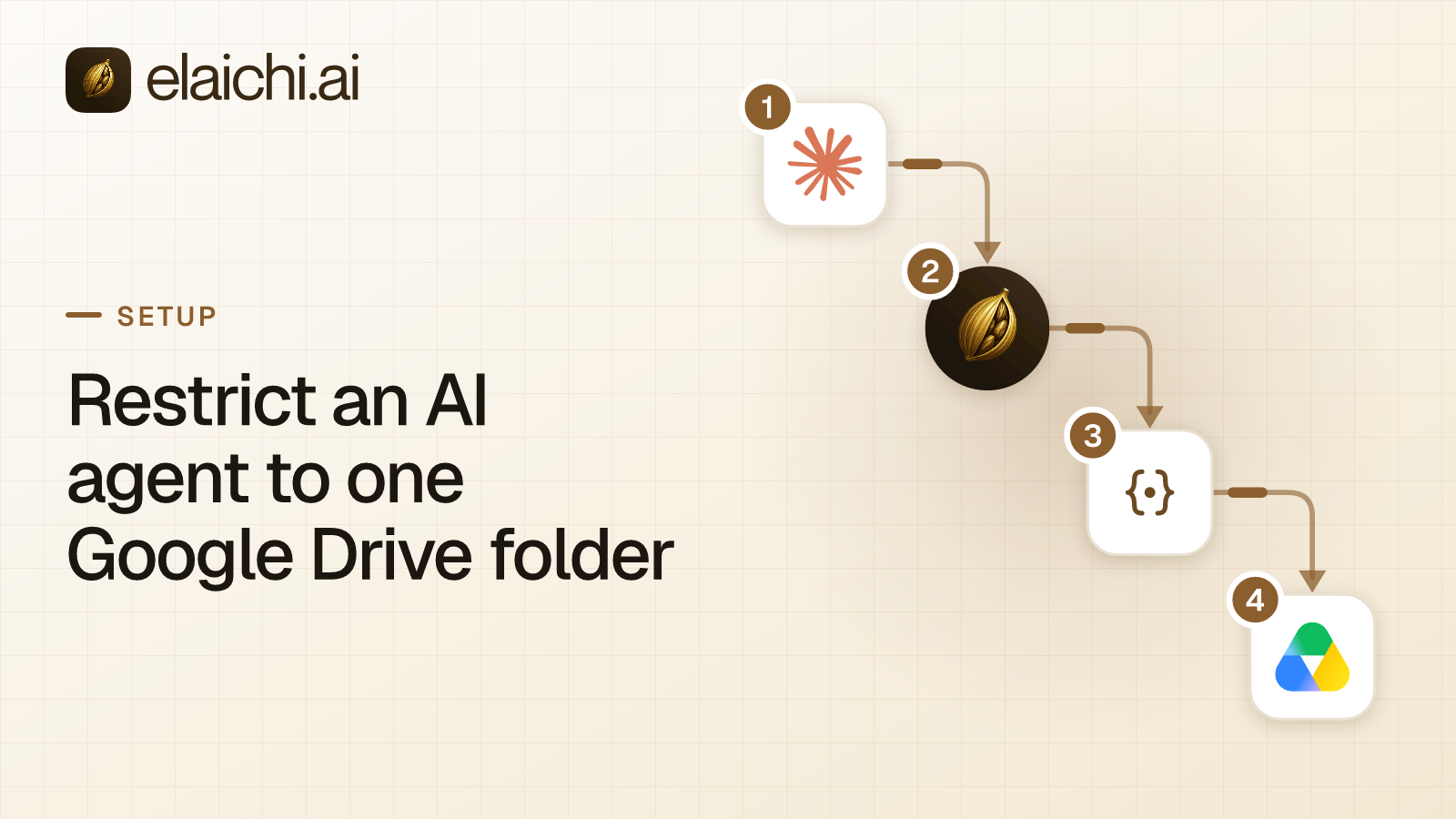
A toolbox is a named list of entries. Each entry is one connector tool pinned to one connection, and an entry can carry frozen parameters. Elaichi's console labels those "Locked-in values." Elaichi's Google Drive connector authenticates with OAuth. None of its tools creates, edits, shares, moves or deletes a file. For this connector the question is only how far the agent can see.
Here is the order that works:
- Connect Google Drive with an account that can only open that folder. This is the step that does the work. Share the one folder to that account in Google Drive, and share nothing else. The ceiling and the floor then sit in the same place, and a configuration mistake downstream cannot widen it.
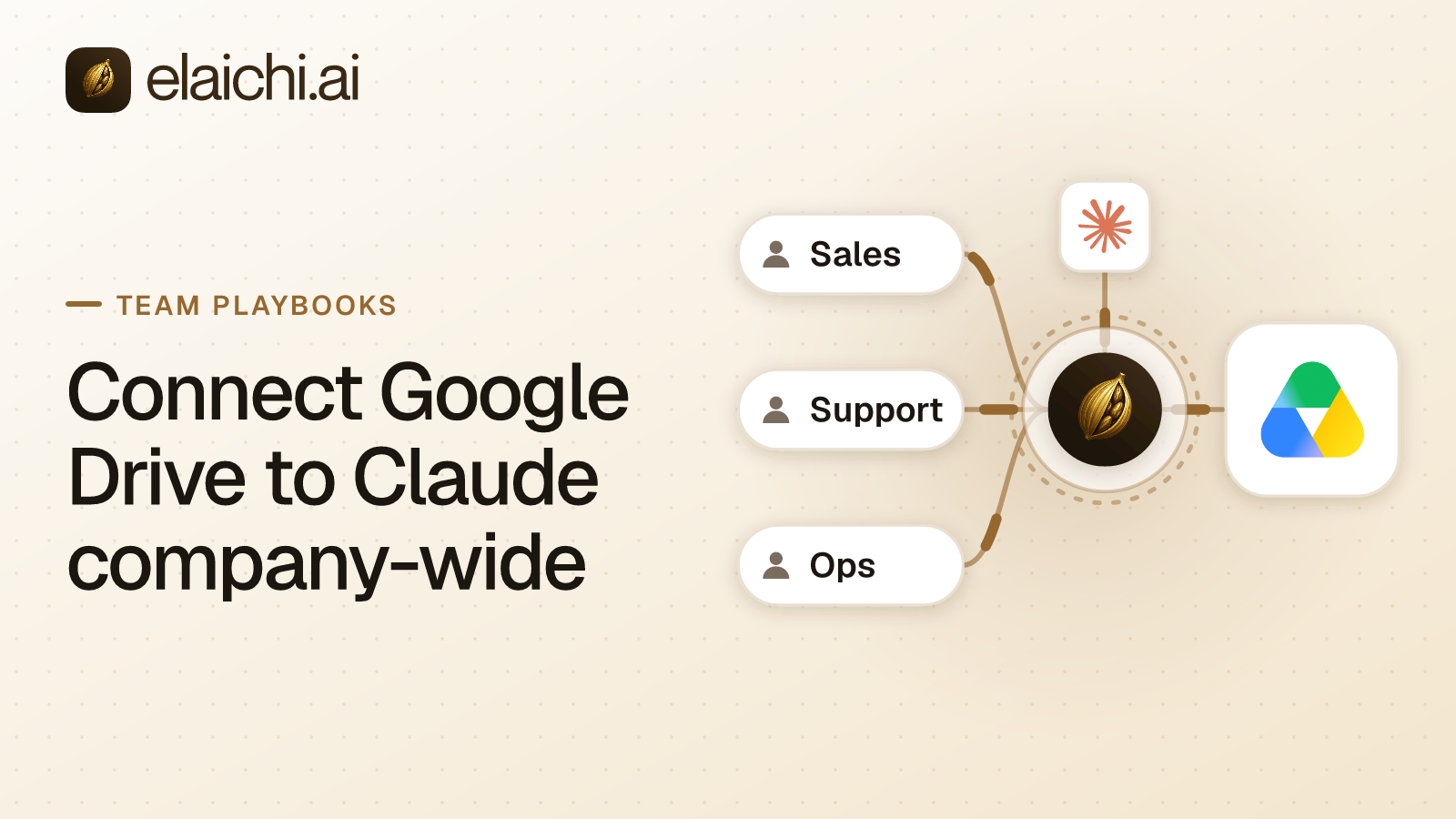
- Share that connection at the use level with the people or team who need it. Every call they make through it runs as that account, so Google Drive's own sharing bounds each one.
- Create a toolbox and pin the Drive read tools the team needs, each pinned to that connection. Pinning records you as the entry's delegator and requires use access on the connection.
- Freeze a
qvalue on the listing entry if you want search narrowed to the folder as well. Set it as a locked-in value onlist_all_googledrive_files. The key has to name a real argument of that tool, or the save is refused with a400listing the valid arguments. - Share the toolbox and tell people it exists, in the toolbox's skill description.
Step one is not optional, and nothing later substitutes for it. If the connected account can open the whole Drive, everyone who can use that connection can reach the whole Drive by file id. That holds through a toolbox or around it.
One more constraint before you design the toolbox. The argument name connection cannot be frozen or defaulted on any entry. It is reserved for choosing which connected account a tool runs against.
What the model sees, and what it cannot change
A frozen value is not hidden from the model. Elaichi prefixes the tool's advertised description with a note naming the frozen key and, for a short value, the value itself. A string of 24 characters or fewer shows in full. Longer or structurally awkward values show as an ellipsis, and the whole note is capped at 120 characters.
Frozen keys are removed from the tool's advertised input schema, from both its properties and required lists. A well-behaved client will not attempt to set them. The server-side merge is what actually prevents an override.
Anyone who can open the toolbox, from view access up, reads every frozen value in full. So does an MCP client that calls elaichi__toolbox__get on a toolbox it can see. MCP, Model Context Protocol, is the protocol AI clients like Claude, ChatGPT and Cursor use to discover and call tools.
So the correct claim is narrow. The AI client can see that the search query is fixed, and usually what it is fixed to, and it cannot change it on that entry. Nothing in this mechanism screens out a secret-looking value from being frozen and displayed. Do not freeze API keys, tokens or passwords as a locked-in value expecting them to stay hidden. That is a different problem needing a different mechanism.
Argument precedence, for reference. Entry defaults apply first, then the caller's arguments override defaults, then frozen parameters override everything. A default would be the wrong tool here, because the caller's own value beats a default. Only a frozen value beats the caller.
Routing Claude, ChatGPT and Cursor through one endpoint
The toolbox is reached the same way whichever client the person uses. Elaichi serves MCP at one address, https://api.elaichi.ai/mcp, identical for every organization. Which organization, person and tools a connection reaches comes from the OAuth grant behind the client's token, not from the URL. Claude, ChatGPT, Cursor, Microsoft Copilot and any other MCP client authenticate there.
That is also where the client's own controls stop being enough. Anthropic lets an organization Owner set a connector tool to Always allow, Needs approval or Blocked (Use connectors to extend Claude's capabilities, checked October 2026). Those settings act on whole tools, so they can block Drive downloads outright. They cannot allow a download for one folder and refuse it elsewhere.
When someone connects a client and enables "Use your connected apps," a "Toolboxes" row on the same page opens a sheet. It asks which toolboxes the app may use. Choosing "Only the ones I pick" names one to 50 stored toolboxes the person can use. The grant is re-checked on every call rather than taken as a one-time snapshot. Picking only the Drive toolbox keeps the client's Drive reach to those entries.
An "Everything I can use" grant does the opposite. It reaches every connection the person can use and every stored toolbox they can use, resolved freshly on each call, with no frozen parameters applied to the plain tools. If the Drive connection is shared with that person, the unfrozen Drive tools are available through this grant. That is another reason the account has to be the boundary. The grant shape changes what is convenient, not what is reachable.
The grant's toolbox selection can be changed later from the app's own entry under Settings, then Connected apps, then Edit toolboxes. That change takes effect on the app's next call. Scopes themselves cannot be widened without reconnecting.
Audit considerations
A frozen parameter changes what a call can contain, not whether the call is logged. Elaichi writes an audit row for each connected-tool call that reaches execution. The row records the person, the tool, the connection it reached, the MCP client when the call came over MCP, and the outcome. A read that only lists files records how many items came back, not the items.
If your compliance team needs a record of Drive access through an agent, treat it as a separate requirement. Access control decides what can be reached. The audit log decides what you can show afterwards. They get mixed up in access-control discussions, and they are answered by different parts of the system.
When this is the wrong shape
Three cases where you should reach for something else.
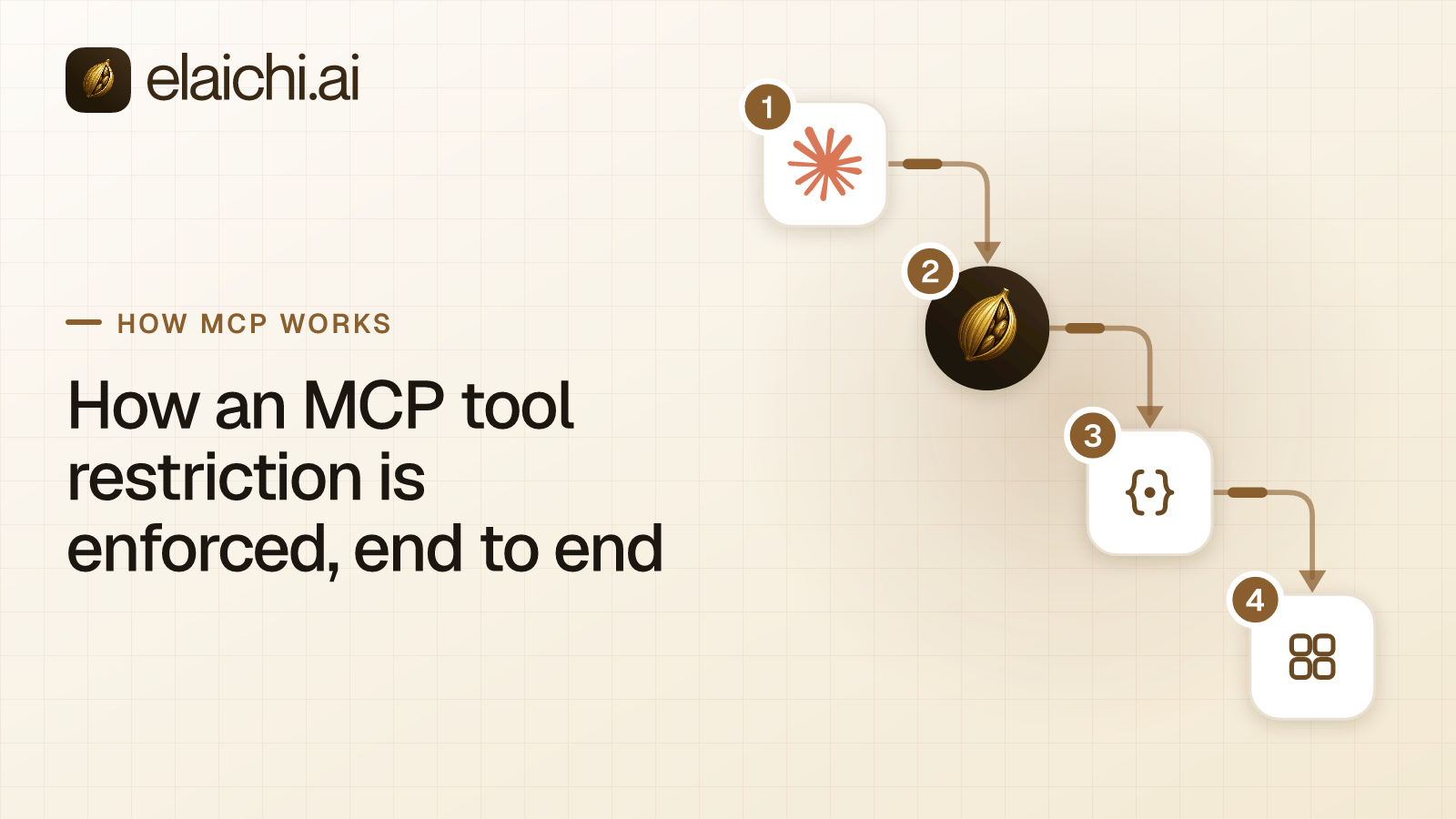
If the question is "which tools may this role touch at all," the answer is a restriction, not a connection boundary. Restrictions target a role or a single member. They are checked before a call leaves, and a blocked tool is withheld from the client's tool list entirely rather than having its arguments constrained. In Elaichi, a restriction change takes about two minutes to reach every surface. How MCP tool restriction enforcement works walks that path.
Do not reach for a restriction to close a gap in sharing, either. A restriction that blocks a tool for a member blocks it inside every toolbox entry for that member, frozen or not. Restrictions match the catalog tool rather than the entry.
If the question is "people should each see their own Drive," a shared connection is the wrong shape. A stored toolbox's entries run only on the connections pinned into them. They never substitute the caller's own connection. Per-person access needs each person's own connection, or a template each person stamps with their own connection. Google Drive MCP access for Claude, company-wide covers that rollout.
If what you need is scanning file contents for personal data as results come back, none of this does that job. Elaichi scrubs secret-shaped values from tool results by key name and a few recognizable value shapes. Elaichi describes that as defense in depth rather than a boundary. It is not a content-classification or DLP system. A folder boundary and a content scanner answer different questions. A team that needs both should budget for both.
For the freeze mechanism itself, on a tool where it does fence something, lock AI agent tool arguments covers frozen parameters in general. MCP governance places them alongside roles and restrictions. The connector catalog lists what else can be pinned the same way.

 Add one link to your AI app
 ChatGPT
 Claude
 Cursor
 Microsoft Copilot