

Emily Carter manages roofing projects. A homeowner calls and says the crew left a mess by the garage. She needs the photos from that job, and she wants to leave a note for the crew lead. Finding the project and scrolling the photos takes a while. She can use ChatGPT with CompanyCam and type the request. Claude works the same way.
Elaichi links the chat to CompanyCam. It is free for one person. The shop-wide view, ChatGPT for home service businesses, covers the whole company. This page covers the project manager, the estimator and the crew lead.
What can you ask ChatGPT in CompanyCam?
A project manager can ask nine things, and each one uses a real tool in CompanyCam. Type them in your own words.
- "Find the Smith roof job on Maple Street." The AI searches projects by name or address.
- "Show the newest photos on that project." It lists photos, newest first, with who took them and when.
- "Which photos on that job are tagged 'before'?" It lists the project's photo tags.
- "Leave a note for the crew on the third photo: please clean up by the garage." It posts a comment on the photo. A comment can notify people you @mention.
- "Add a comment on the project: shingles arrive Tuesday." It posts a comment on the project, and the crew can be notified.
- "Write the job notes for the Smith project from what I tell you." It sets the project's description text.
- "Label the Smith job 'insurance claim'." It adds a label to the project.
- "Move the Smith job to 'Ready to invoice'." It places the project in a stage on your board.
- "Who is assigned to the Smith job?" It lists the people assigned to the project.
The AI reads photo details, not the picture itself. Open the photo to check the work. The CompanyCam page lists every tool the AI can use.
How do you make it run on its own?
A prompt can become a workflow that runs on a schedule. Try: "Every Friday at 4 pm, list the projects with new photos this week and post them in our Slack channel." It uses the same project and photo tools as chat, plus Slack.
In chat, the AI acts right away. In a workflow, the builder can add an approve step, so a named person must approve before anything is sent or changed. The AI never approves its own work. A test run reads real data but changes nothing, so try it first. Ask Claude or ChatGPT in plain words, or build it in the Elaichi app. Workflows come with the Black plan, and every new workspace starts on a 14-day Black trial with workflows included.
What can the AI not do in CompanyCam?
The AI cannot see what is inside a photo, and it cannot do more than your token allows. It can delete a photo or a project, notify people and change users, so a team lead on Gold has to restrict those. Elaichi does not ask before each call.
- It cannot judge the work in a photo. It reads the photo's details only.
- It can delete a photo. A team lead restricts that tool for crews and office staff.
- It can delete a project. CompanyCam makes that a soft delete that can be restored, and it needs a Full access token.
- It can edit the job notes. Setting the description replaces what was there, so ask it to show the old text first.
- It can notify people. A comment notifies anyone you @mention. A project invitation emails another company. Creating a user sends an invitation that cannot be recalled. Restrict these tools for most roles.
- It can change users and billing papers. The tools that create and delete a user, and create and update an invoice or a proposal, belong with the owner. Restrict them for everyone else.
A restriction is a rule that turns off one tool for a role. Restrictions come with Gold. Free Personal has none, so the AI can do whatever the token allows. A new restriction takes effect within about two minutes. A restriction that names tools leaves unnamed tools reachable. Elaichi also does not protect against instructions hidden inside a photo comment, and a Read and Write token is what lets any of these changes happen.
How do you use ChatGPT with CompanyCam for the first time?
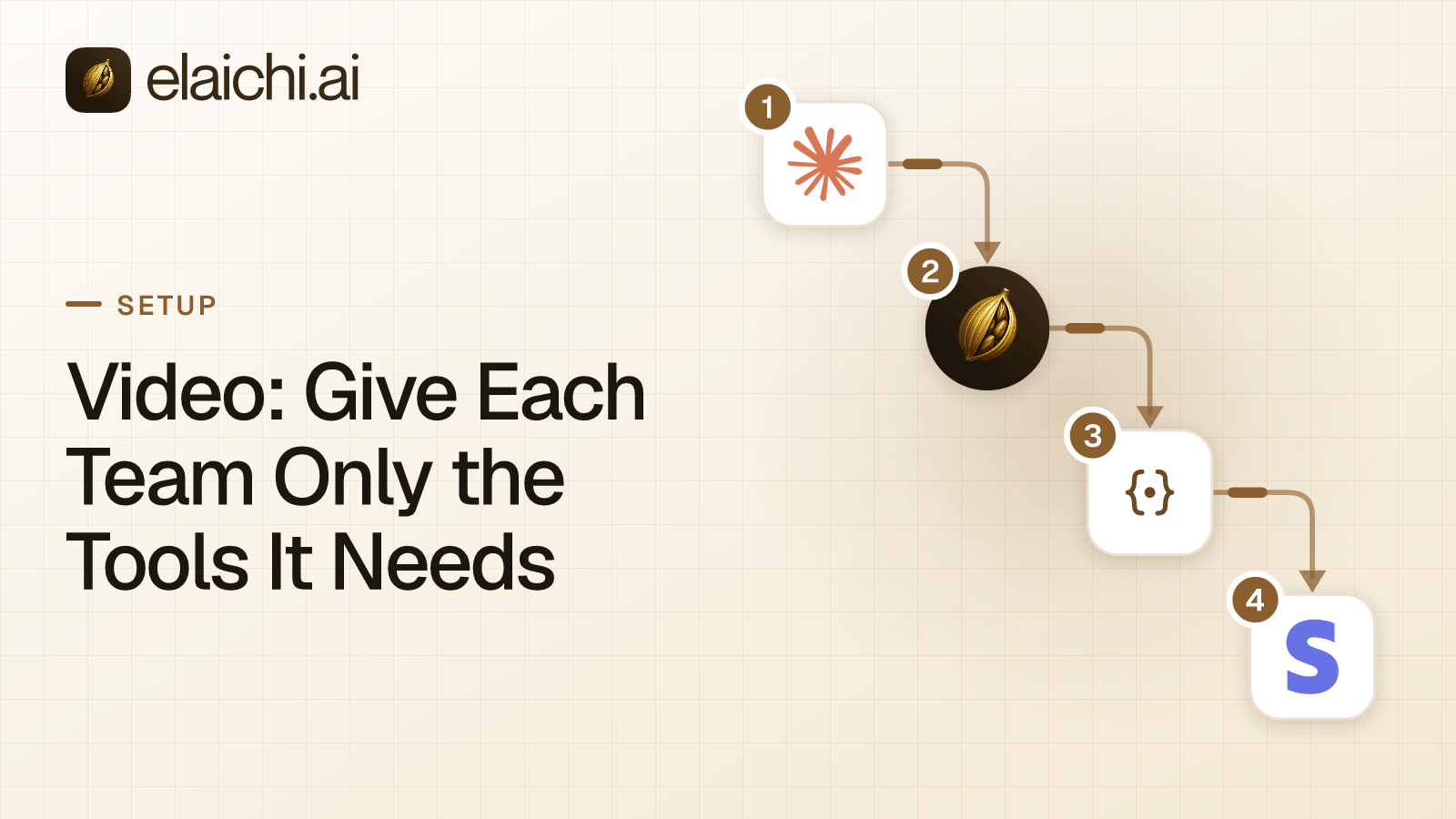
Setup takes three steps, and you do it once.
- Make a CompanyCam access token. Open Integrations, then Access Tokens, then New Personal Access Token. A standard user can do this only if an admin turned tokens on. New tokens are read-only, so switch yours to Read and Write if the AI should leave comments (CompanyCam help, checked November 2026).
- Connect CompanyCam in Elaichi. Sign up, add CompanyCam, and paste the token. One app fits the free plan.
- Add Elaichi to ChatGPT or Claude. Use the address
https://api.elaichi.ai/mcp. In Claude on Pro or Max, go to Customize, then Connectors, then Add custom connector (Anthropic help, checked November 2026). In ChatGPT Business, an admin adds it under Plugins. ChatGPT Pro can connect one with read and fetch permissions only, so to write comments use ChatGPT Business, Enterprise or Claude (OpenAI help, checked November 2026).
Sign in to Elaichi when asked, approve, and open a chat. Start with the first prompt above.
Is this worth it for a crew-based company?
It pays off when the office needs a job's photos and notes fast. If you work in CompanyCam all day and know where everything is, you may not need it.

 Add one link to your AI app
 ChatGPT
 Claude
 Cursor
 Microsoft Copilot