


The situation
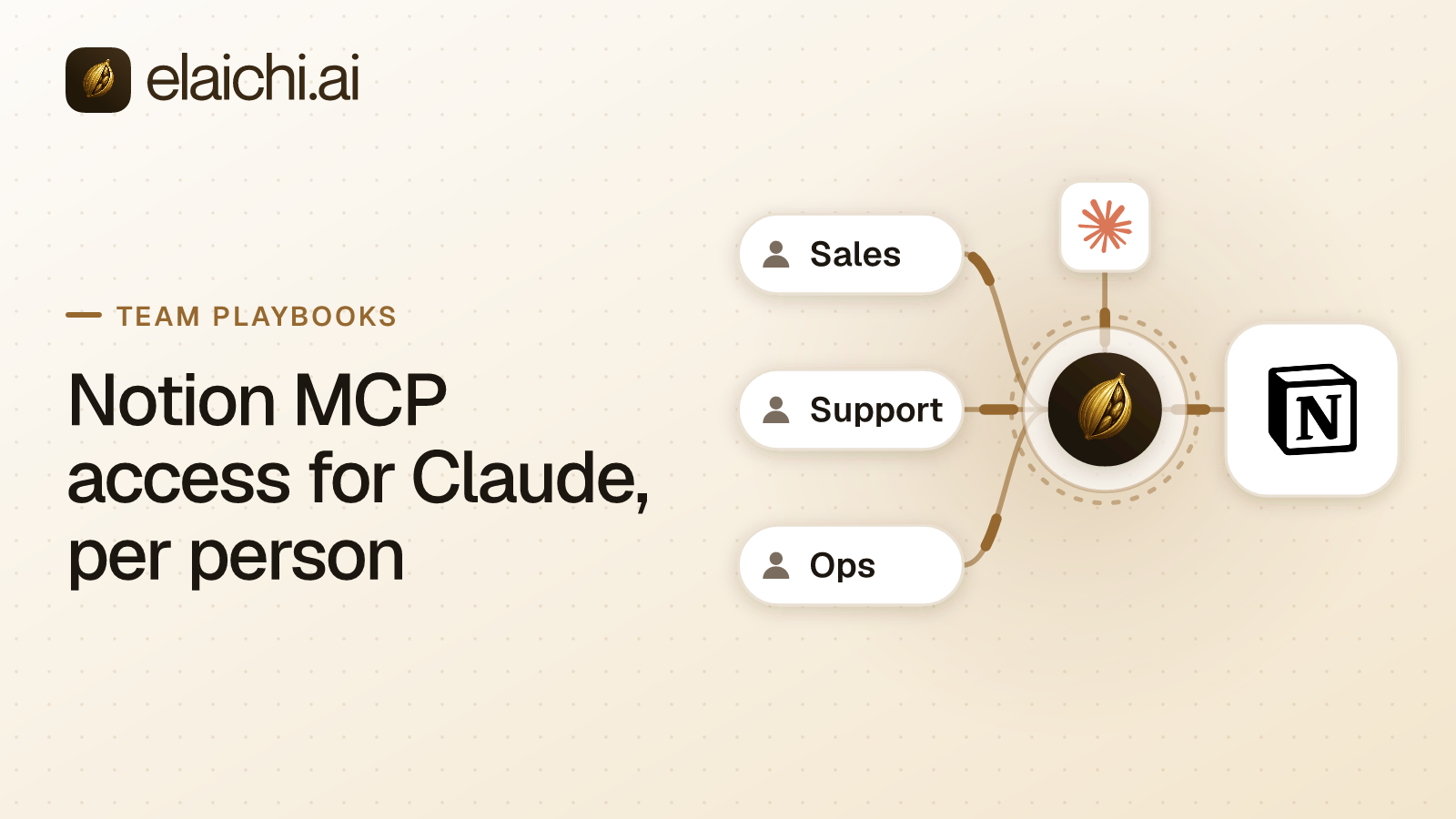
Somebody on the product team asked for Notion in Claude. The request is reasonable. The worry behind it is also reasonable. Notion holds meeting notes, performance drafts, compensation discussions and half-finished strategy docs. Nobody wants a chat assistant reading all of it on behalf of whoever happens to be typing. Elaichi has each person connect their own Notion account, so Claude reaches only the pages that person can already open.
Notion MCP access for Claude turns on one decision, and it is not which tools to enable. It is whose Notion account Claude acts as. Get that right and most of the exposure question answers itself, because Notion already decides what each person can open. Get it wrong and you are rebuilding Notion's permission model inside an AI tool, by hand, forever.
This post sets Notion access up through Elaichi, where each person connects their own Notion account. MCP (Model Context Protocol) is the standard way an AI assistant calls tools in other apps. It covers blocking write tools for roles that only read, locking arguments where a step must stay fixed, and the audit-log check that names who read which page.
What does per-person Notion MCP access for Claude mean?
It means every Notion tool call runs on the connection it was made through. That connection carries one person's Notion sign-in, so Claude sees what that person sees and nothing more.
In Elaichi a connection is a single row holding one connected account and its OAuth token. Every call through it fetches that account's credentials, whoever is calling. So if Priya connects Notion with her own account, Claude running on Priya's grant reaches Priya's pages. A page she cannot open in Notion's own interface is not reachable through the tool either. Notion rejects the API call on its side, so the restriction lives in Notion, not in Elaichi.
Notion's own documentation says the same about its hosted MCP server. Once a client authorizes a connection with OAuth, it can use Notion MCP tools to read and update the content the authorizing user can access (Notion MCP overview, checked October 2026). OAuth is the sign-in handshake where the person approves access in a browser and the client never sees the password.
The trap is sharing. If Priya shares her Notion connection with her team at the use level, everyone's calls still run on Priya's Notion account. That is useful when you want one fixed set of permissions, and wrong when you want each person's own reach. For per-person access, each member connects Notion themselves.
The same applies to templates. Share a template with a team at the use level and each person stamps their own toolbox, picking their own Notion connection for the Notion entries. A single toolbox shared with a team cannot do per-person accounts, because its entries run only on the connections pinned in them.
Quick reference, the three terms that matter here:
| Term | What it means | Where it's set |
|---|---|---|
| Connection | One person's OAuth credential to one app | Created by the member who signs in |
| Toolbox | A named set of tool entries, each pinned to a connection | Built by a member, optionally shared at use |
| Restriction | A block or allow rule naming tools/connectors | Written on a role or a single member, by an admin |
How does this compare with adding Notion in Claude's settings?
Claude's own route is a custom connector added by an organization Owner. On Claude Team and Enterprise plans, an Owner or Primary Owner adds one from Organization settings, Connectors, by clicking Add, hovering over Custom and choosing Web (Anthropic, custom connectors, checked October 2026). After the Owner adds it, each member finds it under Customize, Connectors, and clicks Connect to authenticate.
Two things matter before you choose. First, an Owner adding a custom connector chooses how people sign in: Sign in now, Sign in when needed, or No sign in (Anthropic, authentication, checked October 2026). An Owner can also give a custom connector fixed credentials in up to four request headers that Claude sends on every request. Everyone in the organization then reaches the service with that one credential. Anthropic describes request-header authentication as a beta open to a limited set of organizations. That is the shared-credential shape, and it is the one that makes private pages reachable by anybody who prompts.
Second, a custom connector's authentication settings cannot be changed once it is added. The connector has to be removed and added again, and members then reconnect (Anthropic, add an unlisted connector, checked October 2026). So the sign-in decision is made once, at the start.
| Claude custom connector (Owner-added) | Elaichi per-person connection | |
|---|---|---|
| Identity Claude acts as | One shared account, if header auth is used; each member's own OAuth if "Sign in now/when needed" is chosen | Each person connects their own Notion account by default; a connection shared at use runs every caller on its owner's account |
| Who sets the sign-in mode | Owner, once, at creation; changing it means delete and re-add | Each member creates their own connection whenever they need one |
| Per-tool control | Always allow / Needs approval / Blocked, set org-wide by an Owner, per connector/category/tool | Allow and block rules written on a role or a single member; no per-call approval step over MCP. Per-tool client settings see only execute_tool, read_tool and run_code, so they cannot tell one connected app from another |
| Cross-app audit trail | Per-connector, inside Claude's own admin logs | One audit log across every connected app, not just Notion |
| Fits best when | One app, one team, one shared knowledge base, no need for per-tool rules spanning other apps | Multiple apps, per-person reach required, or you need to answer "who read what" across tools |
Set one more Claude-side control either way. Claude connector tool permissions take one of three settings, Always allow, Needs approval or Blocked. Each applies to a whole connector, to a category of its tools or to a single tool (Anthropic, use connectors, checked October 2026). Owners on Team and Enterprise plans set these for the whole organization, and individual users cannot override them.
How does Claude find a Notion tool at all?
Through a search, not a list. In Elaichi, connected tools are never listed one by one, however few there are. The model finds a connected tool with search_tools and runs it with read_tool (a read) or execute_tool (anything), or with run_code under Code Mode. Each search result says which of the two to use.
The practical effect is that execute_tool is naming indirection, not a privilege. It unwraps to the tool name and arguments it was handed. From there it goes through the same gates as a direct call by that name. read_tool unwraps the same way and meets the same gates, then refuses anything that is not a connected read. Every authorization is taken again at call time: the person's role, their restrictions, the grant's scopes and the toolbox the call runs through. A tool list a client cached yesterday cannot route around a rule written this morning.
It also means a client control that picks individual tool names sees Elaichi's connected tools as a few tool names: execute_tool, read_tool and run_code. It cannot tell Notion from Jira, and gating execute_tool alone leaves read_tool and run_code. Per-app and per-tool control is set in Elaichi, as restrictions. How MCP tool restriction enforcement works, end to end traces one refused call through the layers.
The restriction clamp covers every one of those paths. A direct tools/call by name, execute_tool, read_tool, run_code, a toolbox execution and each step of a synthetic tool all pass the same check, evaluated for the person the call acts as.
How do you block Notion's write tools for a read-only role?
Write a restriction rule on the role. In Elaichi, restriction targets are role or user only; the organization default is the absence of a rule, which means allow everything. A read-only posture for a group of people is therefore written on the role those people hold.
For the Notion connector, the shape that holds up is a block rule on the role. Name the connector and the specific tools that create, update, append blocks, or archive content. A block rule matches by tool name or by the operation Elaichi pinned when you saved the rule, so renaming a tool cannot slip it past the block.
The failure mode to avoid is the allow rule used casually. An allow rule turns on the allowlist for its layer just by existing, whatever it names. In Elaichi, once a role carries any allow rule, every connector and tool none of its allow rules names is blocked for that role. If you write an allow rule for Notion's read tools and nothing else, that role loses Slack, Jira and everything else it had. An allow rule naming nothing blocks every connector and tool for its target; its summary reads "Allows nothing. Every connector and tool is blocked."
Decision table: block, allow, or freeze
| Mechanism | Scope | Use when | What it does |
|---|---|---|---|
| Block rule | Role or single member | You want to remove specific write tools and leave everything else untouched | Denies the named tool/connector; silent on everything else |
| Allow rule | Role or single member | You're writing a complete, named allowlist and will list every app/tool the role is permitted to use | Switches that target into allowlist mode, so anything not named is blocked for that target |
| Frozen parameter | One toolbox entry | A tool is needed, but one input (e.g., a database id) must never change | Removes the key from the schema; merges the fixed value at execution time |
So: block rules for a narrow Notion restriction. Use allow rules only when you are writing a complete approved-apps list for the role and are willing to name every app it uses. MCP tool allowlist vs blocklist walks the choice in more detail.
The other thing to know is timing. Restriction changes are not instant: they reach a running client about two minutes. Member removal and suspension work differently, because they revoke the person's grants, so their MCP clients stop working straight away.
When a restriction does catch a call, the refusal tells the caller whether the block comes from their role or their own account. It also says an admin can lift it through an access request. It does not name the rule or who wrote it. Claude shows the person a card reading that the tool is restricted for their role, with a button to ask an admin for access.
When should you lock an argument instead of blocking a tool?
Lock an argument when the tool itself is needed but one of its inputs must not move. Elaichi calls these frozen parameters, and the console labels them Locked-in values. The case that earns it: support needs Claude to file bug reports as Notion pages, and those pages must land in the engineering triage database and nowhere else.
A frozen key is removed from the tool's advertised input schema, so the client cannot set it. At execution the frozen value is merged over whatever the caller sent. Argument precedence runs entry defaults, then the caller's arguments, then frozen parameters. Frozen values win.
Two honest limits. The model can see what is frozen, and often the values. Elaichi prefixes the tool's description with a note such as (frozen: folder_id=HR), and a client calling elaichi__toolbox__get on a toolbox it can see reads every frozen value in full. Nothing screens out a secret-looking value. Freezing locks an argument; it does not hide it.
The second limit matters more for Notion. A freeze holds only on calls that run through the entry carrying it. Anyone who can use the connection themselves has the same tool without the freeze, through their All tools toolbox. To make a lock stick for a team, the connection's owner keeps the connection unshared. They pin it into a toolbox entry with the frozen value, then share the toolbox at use rather than the connection. Do not try to close the unfrozen path with a restriction, because a restriction that blocks the tool blocks the frozen entry too.
For per-person Notion access you will mostly not need freezing. It earns its place on a shared service connection, where one account posts into one database and you want that database id fixed. Lock AI agent tool arguments covers the mechanic end to end.
How do you check who read which Notion page?
Open Governance, Audit log. In Elaichi, every connected-tool call that reaches execution writes a row: one entry for each connected-tool call that reaches execution (a call refused earlier writes none).
For a Notion read, the detail panel reads like a sentence. It names who did what to which item through which connection. One example: "Using Claude, Emily Carter updated the page 'Q4 Roadmap' in Notion through the connection 'Acme Notion'." The Approval line for a read says "Didn't need approval because it only read data". A call from an MCP client reads "Allowed by the access Claude was granted."
What the row records about the object is a target. That target holds four things: the resource type, an id taken from the one URL path argument that names the object, a title from the response, and the object's own link with no query string. No other argument values are recorded, and neither argument names nor an argument count are. A list or search call records only the resource type and how many items came back.
Two practical notes for the person doing the check. Filtering the audit log to the MCP category does not show MCP tool calls. Connected-tool calls sit in the assistant category, because their action name begins with assistant. And the console's "All time" range sends no start time, so it covers at most the last 400 days. Elaichi keeps 90 days of audit history in the console itself. For a longer history, forward it to your own log service: export to your own Datadog comes with the Black plan.
Reading the whole organization's log needs the audit:view permission, which Org Owner, Org Admin and Auditor hold. Everyone else reads their own events plus events on connections they own or can edit. That is often enough for a team lead checking their own shared connection. Auditor is a free seat, so a compliance reviewer can hold it without taking a billable one. Read-only auditor role setup has the configuration.
What happens when somebody leaves?
In Elaichi, removing or suspending a member revokes every live grant in the same transaction as the membership change. A SCIM deprovision from your identity provider suspends the member, which has the same effect, and reactivating does not bring the grants back; they consent again.
Their Notion account is a separate question. Removing them from Elaichi ends their reach through Elaichi. It does not deactivate their account in Notion, which stays until it is deprovisioned there or through the identity provider.
The part that catches teams out is shared resources. If a departing member owned a connection that a shared toolbox pins, the removal preflight lists it. A shared connection has to be transferred during offboarding, because outside offboarding only a connection's owner can transfer or delete it. Transferring rewrites the owner only. The credential stays the one that was signed in when the connection was made, so the connection still acts in Notion as the person who left. Deprovision or reconnect that account separately. Offboarding AI access runs through the whole sequence.
One endpoint, not one per app
Notion is one connector in a catalog of 650+. The reason that matters here is the second time you do this exercise.
Elaichi serves MCP at one address, https://api.elaichi.ai/mcp, the same string for every organization. Claude, ChatGPT, Cursor and Microsoft Copilot all sign into it. Which organization, person and tools a client reaches comes from the OAuth grant behind its token, not from the URL. Each person connects their client once and approves their own grant on Elaichi's consent screen, then disconnects it under Settings, Connected apps.
That means the rules you just wrote for Notion are written in the same place as the rules for the next app. The same resolver reads them, and the same audit log records them. The catalog holds two kinds of connector. Elaichi authors and runs most of them itself. The rest are native MCP connectors, where the vendor builds and runs its own MCP server and Elaichi handles sign-in, access and audit in front of it. Linear in Claude is the native-MCP version of this same setup, if the product team wants both.
If Notion is the only app your team wants in Claude, and one shared account is what you actually want, Claude's own custom connector is less machinery and you do not need us. The case for a control plane starts at the second app, or at the first moment somebody asks who read what. When you don't need an MCP gateway yet makes that case honestly.
The rollout, in order
- Put the product team on a role with Notion's write tools blocked (create, update, append, archive).
- Have each member connect their own Notion account, with no shared connection.
- Leave it there for a week.
- Check Governance, Access requests at the end of the week to see what people asked for, and read the audit log for the Notion calls that did run.
- Open up writes for the roles that turned out to need them, one tool at a time, as block-rule exceptions rather than a blanket allow rule.
From here, Roles, restrictions and ACLs explains the three layers underneath this. The Notion-and-ChatGPT version of this setup is in Notion MCP access for ChatGPT. The connector catalog lists what else is ready to govern the same way.


 Add one link to your AI app
 ChatGPT
 Claude
 Cursor
 Microsoft Copilot