


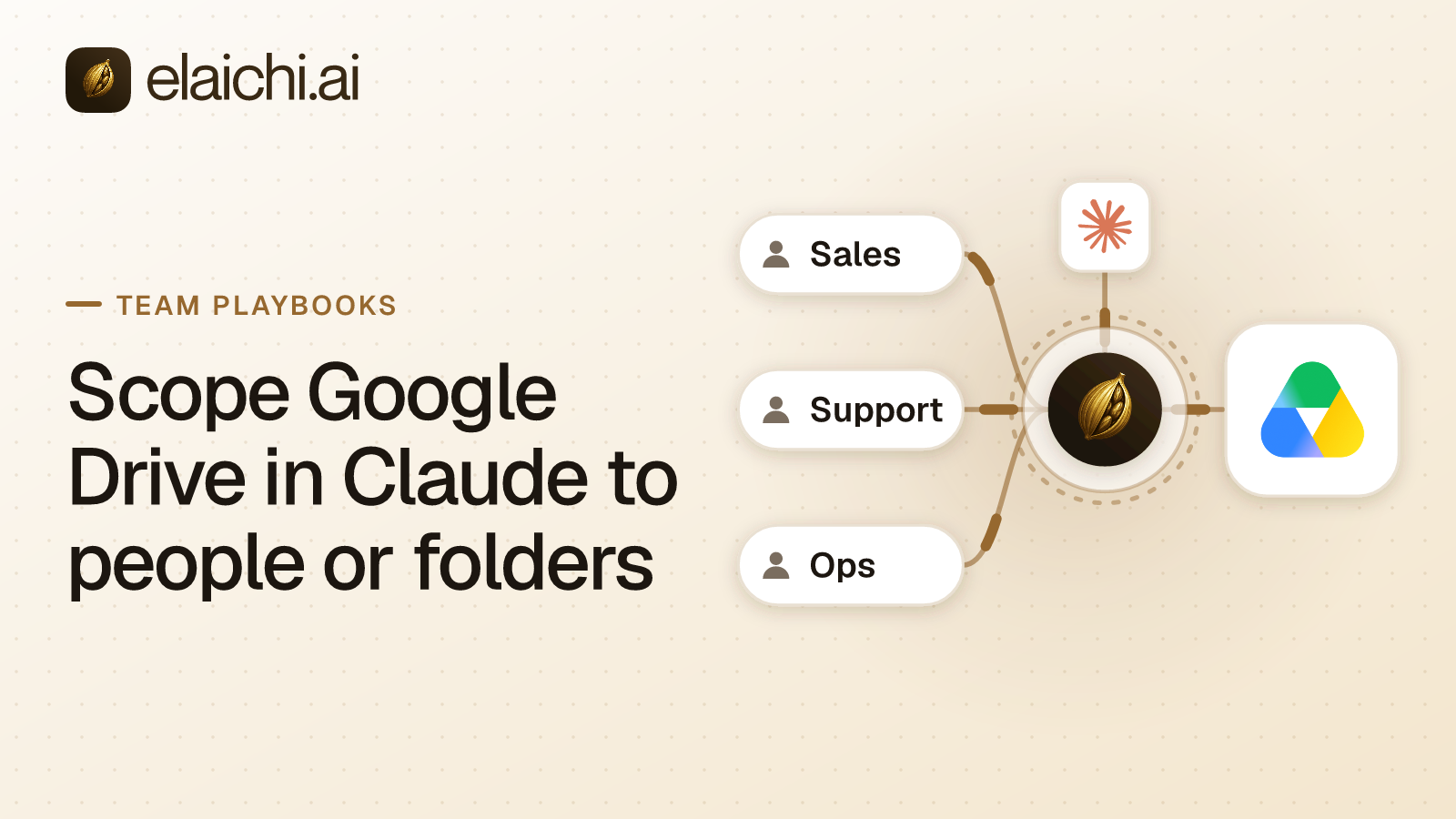
Google Drive in Claude: the two shapes that work
You have agreed to give the company Claude, and Drive is the first app on the list. Two hundred people, one Google Workspace, one rollout window. The decision that matters is not which connector to install. It is how many Google accounts sit behind it, and whose.
Google Drive in Claude reduces to two shapes, whichever vendor's connector you use:
- Per-user OAuth: each person connects their own Google account, so their existing Drive permissions bound every call.
- Dedicated account: one Google account, with only the target folders shared to it, draws the folder line, and a team shares that one connection.
Most company-wide rollouts are shape 1 for everyone, with shape 2 for the few teams that should see one fixed set of folders and nothing else. These are not Elaichi inventions. They are the two access patterns any OAuth-based Drive integration can offer. A Drive call made with a person's OAuth token is bounded by that signed-in account. Elaichi serves both through one organization-wide MCP endpoint. MCP (Model Context Protocol) is the standard way an AI assistant calls tools in other apps. Elaichi writes and runs most of its 900+ connectors, Drive among them. So Drive is served from Elaichi's infrastructure rather than a server someone on your team has to stand up and patch.
The same address answers ChatGPT, Cursor and Microsoft Copilot. The folder question does not change per client, and neither does the answer below.
Simplest case first. Every person should see whatever their own Google account can already open, with no folder boundary and no shared account. Shape 1 is the whole rollout: each person connects Google, done. The rest of this post is for the harder cases. One version: a team's AI needs to see less than any one member's full Drive. The other: one set of folders has to be shared across a team without multiplying individual logins.
Can one Google Drive connection serve the whole company?
Not if people are to keep their own Drive permissions. In Elaichi a connection runs every call on the account it was connected with, whoever is calling. Share one Google connection with the organization and every person reaches Drive as that one owner, with that owner's full access, and the audit trail records the same account for all two hundred of them.
So a company-wide rollout of shape 1 means each person connects their own googledrive account. At that scale you hand it out as a template, not as a shared toolbox. This part is Elaichi-specific plumbing. It is described here because it is the mechanism, not because it is the only way to think about the problem.
A template holds a tool list with renames, defaults and frozen arguments, and never holds a connection. Share it with the team at use. Each member then stamps their own toolbox from it and picks their own connection for Google. Stamping binds every entry to a connection that person can use, so their own Google account runs the call. Stamping copies once, so a later template edit leaves already-stamped toolboxes alone. A member who has not connected Google yet sees that entry marked "needs connection" until they do.
Sharing a toolbox does the opposite. A toolbox shared with a team runs each entry on the connection pinned in it, under the authority of the delegator, meaning whoever pinned it. Never pair "each person connects their own account" with "share one toolbox with the team". That silently runs everyone's calls on the delegator's Google account, with that person's full Drive access.
This part is universal, not vendor-specific: Google enforces access at the API layer, not the AI client. The Drive API bounds every call by the signed-in user. It returns 404 notFound where the person has no read access, and 403 where they have no write access (developers.google.com, checked October 2026). A support agent asking about a folder nobody shared with them gets nothing back, for the same reason they see nothing in Drive itself. The same per-person shape is what keeps each rep inside their own Salesforce sharing rules.
Can an OAuth scope limit Drive access to specific folders?
No. Stated flatly: no Google Drive OAuth scope confines an app to a folder.
drive.filereaches only files the app created or opened, or that the user picked via Google Picker, a per-file consent pattern, not a folder boundary.drive,drive.readonly, anddrive.metadata.readonlyreach the user's entire Drive (and any shared drives they belong to).- There is no
drive.folderscope and no documented scope parameter that recurses into a folder tree.
(Source: developers.google.com, checked October 2026.)
A query such as 'FOLDER_ID' in parents and trashed = false narrows a search, and Google does not document it as recursive into subfolders. A search filter is not a permission, and a model calling the tool can omit or alter the filter on its own.
So the only real folder line is drawn at the account level, not the scope level: the Google account the connection signs in with. The working pattern is:
- Create a dedicated Google account.
- Share only the folders that team should reach, to that account, in Drive's own sharing UI.
- Connect that account to the MCP server (Elaichi or otherwise).
- Share that one connection, or a toolbox that pins it, with the team.
A shared connection runs on its owner's credential. So every call reaches Drive as that account and sees exactly what was shared to it, nothing more. The dedicated account itself has nothing more. The step-by-step version of this account-level boundary is in holding an assistant to a single Drive folder. Anthropic recommends the same dedicated-account pattern for Claude Tag's Google connection. The account starts at no access and gains specific folders one at a time (claude.com, checked October 2026). Before relying on the line, open Drive as that account and check what it can already see, such as files shared with your whole domain.
Two trade-offs come with this pattern:
- Ownership: the dedicated connection has an owner in Elaichi. Pick an owner who is staying, and transfer the connection during their offboarding. The credential is the dedicated Google account, not the owner's own, so a transfer keeps it working.
- Scope only narrows the connection it's on. A member who also connects their personal Google account reaches Drive under "Everything I can use" with their own full Drive access. That is shape 1 running beside shape 2, for that person only.
Which tools can the Google Drive connector actually run?
Elaichi's googledrive connector connects over OAuth, and most of its tools read. Files, folders, shared drives, drive items, search, export, downloads, permissions, labels, revisions, comments and replies, Docs, Forms and the change log are all reads. Names run like list_all_googledrive_files and get_single_googledrive_file_by_id. The full list is on the Google Drive connector page.
Five tools do something other than read. googledrive_files_upload adds a file, which Google saves in My Drive as Untitled until update_a_googledrive_file_by_id names it and, with addParents, files it in a folder. That update tool also renames or moves any file the connected account may move. create_a_googledrive_watch and create_a_googledrive_changes_watch ask Google to post change notifications to an HTTPS address the caller supplies. delete_a_googledrive_channel_by_id stops a channel. No tool shares a file, changes its permissions, edits an existing file's contents, or deletes or trashes a file.
A move still touches sharing. Google's Drive help says every file inside a shared folder inherits that folder's sharing, and that a Viewer cannot make changes or share an item (support.google.com, checked November 2026). So moving a file into a shared folder widens who can open it. With the dedicated-account shape, share the folders to that account as Viewer when the team only reads, and Google refuses the move as well.
A team that only reads blocks all five tools. Blocks, not allows, are the right instrument here, for a structural reason:
- An allow rule becomes that role's entire allowlist across every connector, so the role loses every other app it had.
- A block removes exactly the named tools and leaves everything else untouched. Five blocks leave every read in place.
In Elaichi, restriction targets are role or user only; the organization default is the absence of a rule, which means allow everything. A restriction change takes effect within about two minutes. Restrictions are applied before search. A restricted tool is left out of the tools Elaichi offers a client and cannot be called. Search still names it, flagged restricted, with no schema. The case-by-case version of this choice is in restrict one AI tool or the whole app.
One thing the OAuth consent screen does not do: leaving "Make changes" unticked does not make a connected app read-only in Drive. That checkbox governs Elaichi's own internal operations, not what the Drive API will accept from the connected account. Read-only access to Drive is a restriction you apply explicitly (the five-tool block above), not a side effect of a consent checkbox. It is the same way QuickBooks has to be held to reads when the vendor ships no read-only scope.
What does a Google Workspace admin set before any of this?
The Workspace control is Manage App Access, under Security, then Access and data control, then API controls. An app, found by name or OAuth client ID, is set to Trusted, Limited, Specific Google data, or Blocked. Unconfigured apps fall under "Allow users to access any third-party apps" (knowledge.workspace.google.com, checked October 2026).
Order matters, and getting it backwards breaks working connections:
- Mark the app Trusted first.
- Restrict afterward (e.g., set Drive to Restricted for the org).
Setting Drive to Restricted before trusting the app revokes untrusted apps' tokens, including ones that were working that morning. Google's high-risk Drive scope list includes drive, drive.readonly, and drive.metadata.readonly, but does not include drive.file. Elaichi's console does not show which Google scopes its Drive connector requests. So find the app by name or OAuth client ID, rather than inferring it from the high-risk scope list.
Shared drives need a separate argument entirely. The Drive API returns shared-drive items only when a call sets supportsAllDrives=true and includeItemsFromAllDrives=true. The corpora argument takes one of user, domain, drive, or allDrives (developers.google.com, checked October 2026). Google also states admins have no control over individual folders inside users' My Drives. That is another reason the dedicated-account pattern, not a central Workspace policy, is how a folder boundary actually gets drawn. Per-tool arguments are on the Google Drive connector page.
Claude native connector vs. ChatGPT Drive app vs. an MCP endpoint
| Claude's built-in Google Drive connector | ChatGPT's Google Drive app | Elaichi (MCP endpoint) | |
|---|---|---|---|
| Permission model | Mirrors the connecting user's existing Drive permissions | Live access as the user, or admin-managed sync via domain-wide delegation | Per-user OAuth or dedicated-account, admin's choice |
| Folder-level restriction | Not documented | Admin-managed sync can include or exclude shared drives; no folder restriction documented | Dedicated Google account + Drive sharing (account-level, not scope-level) |
| Per-tool control | Always allow / Needs approval / Blocked, set by Owner | Actions switched per app on the Admin Console's Plugins page | Per-role/per-user restrictions on any Drive tool |
| Cross-app consistency | Claude only | ChatGPT only | Same endpoint, same restrictions, across Claude, ChatGPT, Cursor, Microsoft Copilot |
| Audit trail | Compliance API events on Enterprise | Compliance Logs Platform on Enterprise and Edu | One trail across every connected app |
| Availability | All plans; Team/Enterprise admin enables org-wide | Enterprise/Edu/Business, Admin Console managed | Any client that takes a custom MCP connector |
Sources: Anthropic states Claude "mirrors your existing permissions" (support.claude.com, checked October 2026). OpenAI documents live access for a personal connection, and admin-managed sync through a domain-wide delegation service account. Individually authorized sync is retired (help.openai.com, checked October 2026). Drive actions start off on Enterprise and Edu and on for Business (help.openai.com, checked October 2026).
When to just use Claude's native connector and stop. Drive is the only app the company needs in Claude. People need to share or trash files from the chat, not just read, upload or move them. Use it. It's on all plans; an Owner or Primary Owner enables it under Organization settings, Connectors. No folder or shared-drive restriction is documented for it, and each person connects their own Google account. So a folder boundary needs the dedicated-account pattern, through a connector that can share one connection.
The caveat on the Elaichi row: to ChatGPT, Elaichi presents as one custom app whose tools are search_tools, execute_tool and Elaichi's own operations. ChatGPT's own per-action approval switches therefore cannot distinguish Drive from any other app behind Elaichi. That granularity has to be enforced inside Elaichi's restrictions, not in ChatGPT's UI. The broader trade-off is in Claude and ChatGPT connectors vs one MCP endpoint.
Adding the endpoint, approving the scopes, and the record afterward
The address is https://api.elaichi.ai/mcp, the same for every organization. On Claude Team and Enterprise, an Owner or Primary Owner adds it once for the whole company: Organization settings > Connectors, then Add, hover Custom, choose Web. Each member then opens Customize > Connectors, finds it marked Custom, and clicks Connect to authenticate (support.claude.com, checked October 2026). There is no client ID, secret, or header to type, because the client registers itself through OAuth dynamic client registration.
On Elaichi's consent screen the person picks the organization first. Then come the checkboxes: Use your connected apps, See your organization, Make changes, and Delete things. Delete things is never pre-ticked. With "Use your connected apps" ticked, a Toolboxes row opens a sheet that asks for Everything I can use or only chosen toolboxes. For the dedicated-account shape, picking just the Drive toolbox is the tighter choice: Everything I can use also reaches every other connection that person holds personally.
Afterward, the record is plain. Elaichi writes one entry for each connected-tool call that reaches execution (a call refused earlier writes none). The record carries the one path argument that names the object as the target id, and no other argument value: no argument names and no count. So the log shows which object was acted on, not what was written to it. That answers the first question in an incident: who reached which Google account, through which client. The entry carries the surface (mcp), and the OAuth client it came through, marked verified for Claude, ChatGPT, and Cursor. The audit trail inside Elaichi is on the Gold plan; forwarding it to your own Datadog comes with the Black plan.
What happens when the person who pinned the connection leaves?
The entries they pinned stop resolving, and someone has to re-pin them. Every toolbox entry bound to a connection records a delegator, meaning the person who pinned it and who holds use on that connection. Once that person is no longer an active member, whether they were removed or suspended, each of their entries resolves as unmet for everyone, the toolbox owner included. The entry stays listed, is not advertised to the AI client, and cannot be called.
Nothing re-pins itself. Someone with edit access on the toolbox and use on the connection re-pins it, which the console offers as "Re-pin to my access", and becomes the new delegator. Healthy entries are left alone, and each re-pin is written to the audit log.
Transferring the connection does not substitute for that. A transfer rewrites who owns the connection and leaves every entry's delegator as it was, so a shared Drive toolbox still needs re-pinning afterward. Do the transfer during the removal rather than after it: outside offboarding only a connection's owner can transfer it, and the removal's result names every toolbox that pins a connection it moved, which is the list to work through. If the dedicated Google account was connected by the leaver, the credential still signs in as that account, so nothing changes on Google's side.
If you're still deciding whether any of this machinery is warranted, start with what an MCP control plane is for. If you've decided, the Claude connection walkthrough covers sign-in, and the team use cases show what other teams set up next.


 Add one link to your AI app
 ChatGPT
 Claude
 Cursor
 Microsoft Copilot