


Why does one shared Salesforce integration user break the model?
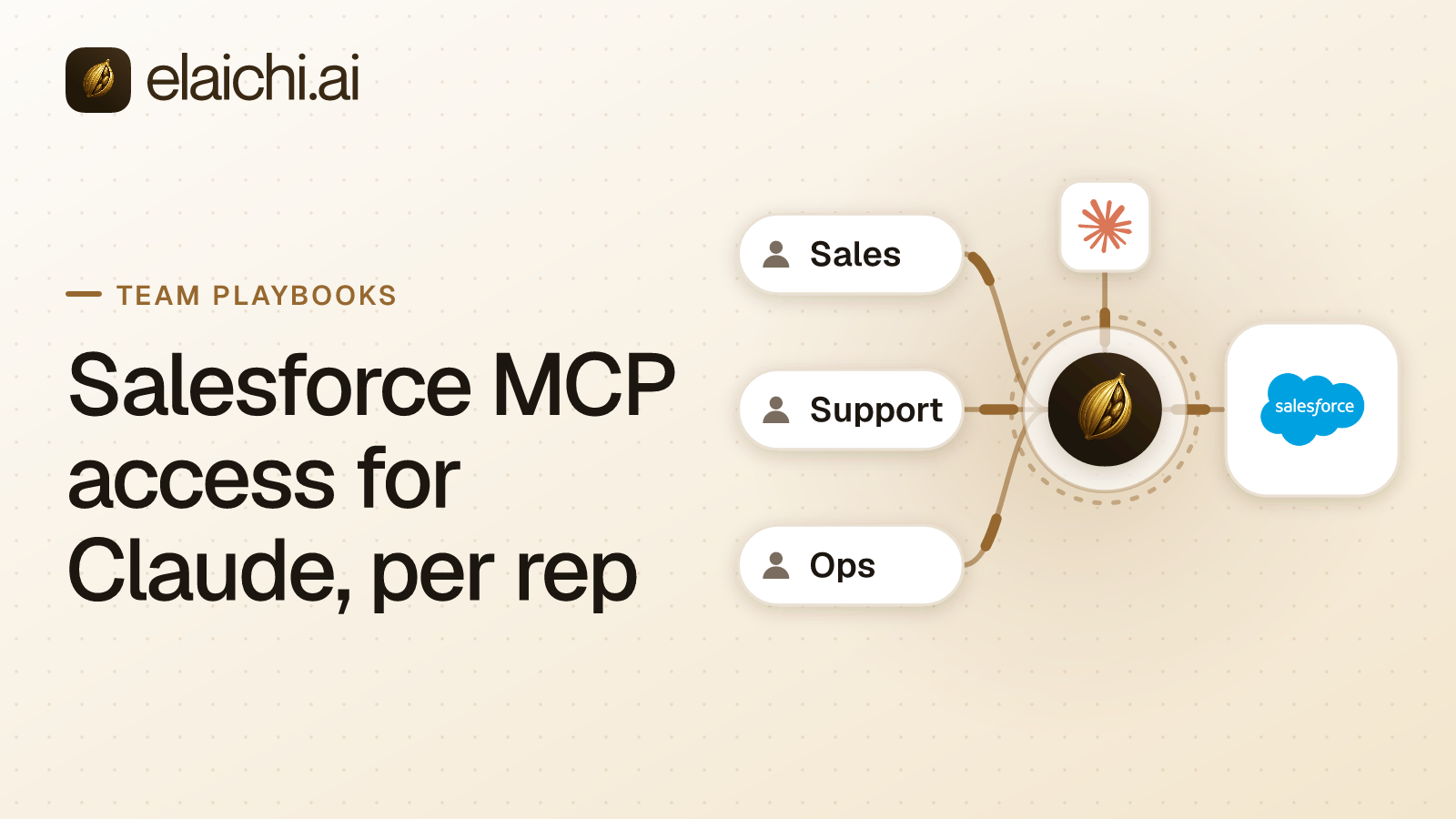
Salesforce MCP access for Claude usually breaks in one place. One admin connects a service account, and every rep's Claude calls run as that account. The org-wide defaults, role hierarchy and sharing rules then stop deciding anything. A rep who can see twelve accounts in the Salesforce UI can now ask Claude about the whole pipeline. Elaichi serves one MCP address where each rep connects their own Salesforce login, so Claude reaches only that rep's records.
That is not a Salesforce failure. It is a property of how credentials resolve in any MCP control plane, Elaichi included. A connection is a stored credential plus an owner. A call made through that connection runs as the owner, not as whoever sent the call. The caller's own identity plays no part in which credential gets used, unless the system keeps connections one per person. A connection shared at the use level means one admin's login and many callers. It collapses every caller down to that one identity on the Salesforce side.
It also ruins the audit trail. A record changed through a shared account is logged in Salesforce against that account, not against the person who typed the prompt. If you ever need to answer who told Claude to update an opportunity, a shared service account cannot answer it. Only per-rep connections preserve that chain.
The shape you want is the opposite. Each rep owns their own connection, signed in with their own Salesforce account. Then each person's own permissions, role hierarchy and sharing rules apply when they use Claude, because the connection was authorized by them. The same reasoning drives an AI client acting with an employee's permissions generally.
Terms used in this post
Four Elaichi-specific nouns do most of the work below. They map to concepts most MCP control planes have some version of, under different names:
| Term | What it is |
|---|---|
| Connection | One stored OAuth credential to one third-party app (e.g. one rep's Salesforce login), owned by one Elaichi member. Private by default; can be shared with a user, a team or the whole organization. |
| Grant | The scopes a rep approves on Elaichi's own consent screen when connecting Claude. It says what Claude may do with that rep's connections, not what Salesforce allows. |
| Toolbox | A named group of tools (from one or more connectors) that a client is allowed to see and call. Grants (sharing) work on toolboxes; restrictions work on connectors and tools. |
| Restriction | An allow or block rule, targeting a role or a single member, naming connectors or specific tools. Enforced independently of what the app's own permissions allow. |
How do you set up Salesforce MCP access for Claude, per rep?
Salesforce MCP access for Claude starts with one address and ends with each rep approving their own grant. Elaichi serves MCP at https://api.elaichi.ai/mcp, the same string for every organization. Salesforce is a distinct connector in Elaichi's catalog.
The order that works:
- An admin adds Elaichi once, in Claude. On Claude Team and Enterprise plans an Owner or Primary Owner adds a custom connector from Organization settings > Connectors, by clicking Add, hovering over Custom and choosing Web. That path was verified against Anthropic's custom connectors guide (checked October 2026). Each member then finds it under Customize > Connectors and clicks Connect.
- Each rep connects Salesforce as themselves. In Elaichi, Connections has an Add connection button. The rep chooses the Salesforce connector, leaves the share setting on Private, and signs in with their own Salesforce login. No admin step is required for this part. It is the rep's own OAuth handshake with Salesforce.
- Each rep approves their own Claude grant. The consent screen shows the Elaichi account in use, the organization, and a checkbox for each scope Claude requested. Ticking "Run your connected tools" adds a second step asking which toolboxes Claude may run tools from.
Nothing is shared in this setup. A connection with no sharing grants is private to its owner, and a private Salesforce connection only ever runs as the rep who made it. That is the mechanical reason Claude sees the rep's records and nothing more. It is a direct consequence of there being exactly one credential behind the connection, not a policy promise.
For the same pattern in a different client, the ChatGPT version of this rollout covers the admin console differences.
What do Salesforce permissions not cover?
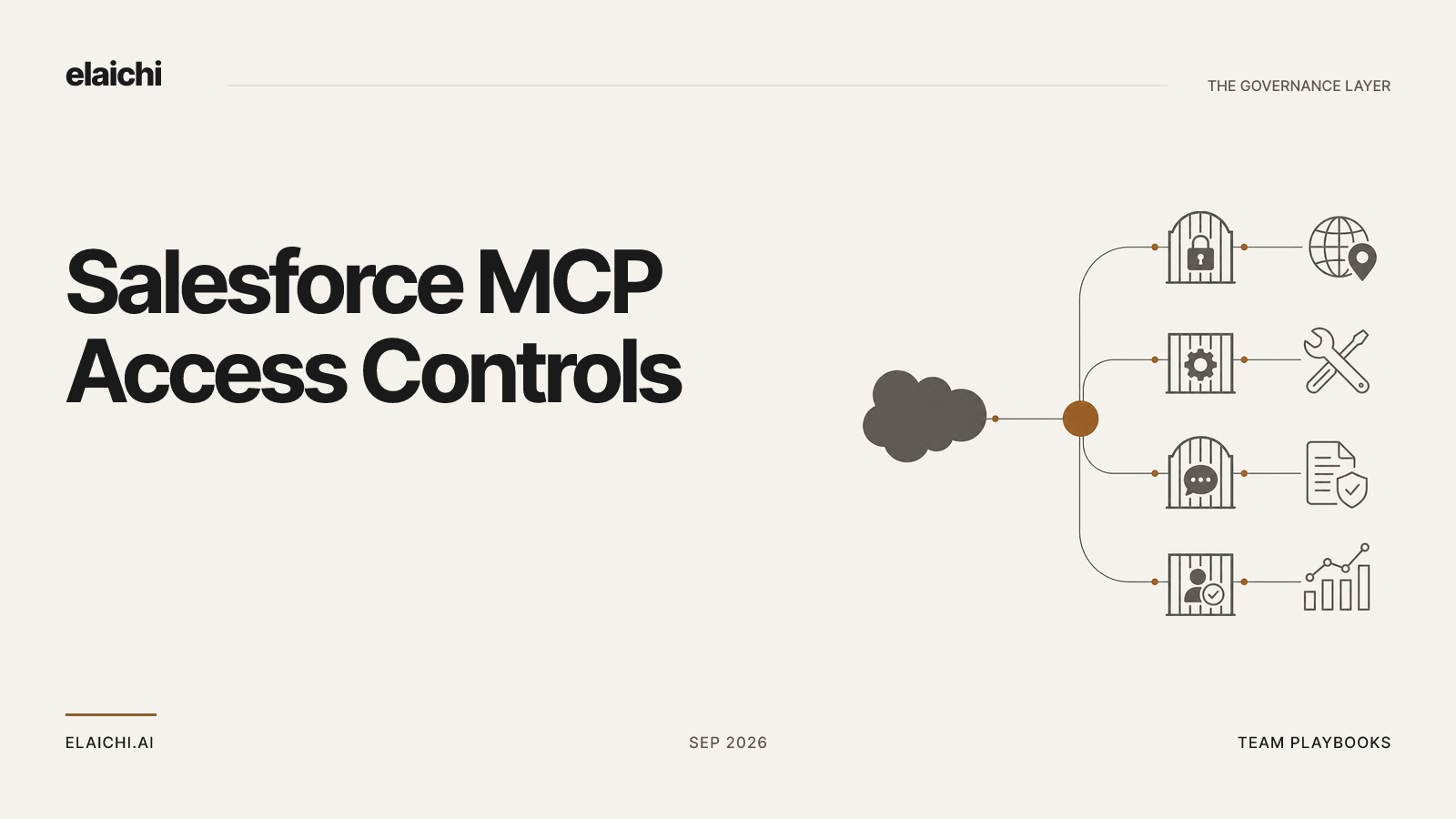
Inheriting a rep's Salesforce permissions is a floor, not a ceiling. Most sales reps can delete a record in the Salesforce UI, because sometimes they need to. An AI client acting with those same permissions can do the same thing from a chat message, at the speed of a model that misread an instruction. There is no confirmation dialog unless the client itself adds one.
Elaichi's restriction layer sits above the app's own permissions and is enforced independently of them. A restriction rule has:
- a mode: allow or block
- a target: one role, or one named member (there is no org-wide target and no team target)
- a scope: one or more whole connectors, or individual tools within a connector
In Elaichi's console, you would write this as a block rule on the sales role. Add the Salesforce connector, choose specific tools, and tick the tools that delete records, such as Delete a Salesforce account by ID and Salesforce accounts batch delete. Every member on that role is then held to it, whatever their Salesforce profile permits. A new rule takes effect about two minutes.
Two things about block rules, before you write one. This is a general property of allow and deny rule engines, not something specific to Elaichi.
- A layer with only block rules has no implicit allowlist. Everything not named passes. Blocking three delete tools leaves every other write tool reachable. A short approved list instead requires an allow rule, and then the role needs allow rules covering every other app it uses too. An allow rule that names nothing blocks everything for its target. Mixing allowlist and blocklist thinking in one rule set is the most common misconfiguration.
- A block rule matches by name or by operation, not by surface text. Renaming a tool in a client's UI cannot slip it past a block. An allow rule matches only the pinned operation, so a tool split into two operations later needs its allow rule updated. It will not inherit access automatically.
Restrictions are checked for the person calling, never for whoever set up the connection. They run at every point a member can reach a tool: listing connectors, advertising tools to a client, and executing a call, whether that call arrives through read_tool, execute_tool or a direct tools/call. A final outbound-request guard then compares the resolved URL, and every redirect hop, against tool-level block rules. Read where restrictions are enforced before designing a rule set. Getting the enforcement point wrong is the usual reason a restriction does not work.
When a rep hits a block, the refusal states whether it came from their role or their own account, and that an admin can lift it through an access request. The rep can file that request themselves from the client; a grant with read or tools scope is enough to trigger it. Only a person in the Elaichi console can approve or deny it, under Governance > Access requests, after re-confirming their own identity. A role-by-role version of the same exercise on ServiceNow shows how the rule set grows once more than one role is involved.
Can writes wait for approval over MCP?
Not per call, and this is the part most architecture diagrams get wrong. Over MCP, the approval moment is Elaichi's consent screen, not a runtime checkpoint. The scopes a rep grants Claude there are the standing approval for that client's calls going forward. Over MCP there is no trusted Elaichi prompt surface to ask at call time. Elaichi is a server the client calls, not an interface the human is looking at when the call happens.
Practically: Elaichi runs every call that passes the grant's scope check as already approved. There is no per-call hold on the MCP path. A per-call confirmation a rep sees inside Claude is Claude's own prompt, not Elaichi's. Claude has its own approval UI, under Needs approval, where members confirm each call. A user can choose Always allow for a tool only where Claude's own policy permits it. That behavior was verified against Anthropic's connectors article (checked October 2026). The two approval layers are independent. Claude's prompt governs whether Claude sends the call at all; Elaichi's grant governs whether Elaichi executes it once sent.
A client control that gates or allow-lists tool names cannot do per-app work here. Per-tool client permissions see Elaichi's connected tools as a few tool names, execute_tool, read_tool and run_code, so they cannot tell one connected app from another. Gating execute_tool alone leaves read_tool and run_code. Per-app and per-tool control is set in Elaichi, as restrictions.
There is a second trap in how the scopes are named. "Run your connected tools" covers running every tool in a connected app, deletes included. It is not scoped by operation type. "Delete data and remove access" covers Elaichi's own object deletes, such as connections and toolboxes, not deletes inside Salesforce. Unticking "Create and change data" does not make a connected app read-only, because that scope gates a different category of action than tool execution. To hold Claude to reads in Salesforce, do one of two things. Pick toolboxes containing only read tools at consent time, or block the write and delete tools with a restriction. The restriction is the durable control, because it binds every client that sends the call.
The Elaichi Agent, available on the Black plan, stops writes at an approval card before they run. That is a genuine per-call hold, unlike the MCP path above. It is a different execution surface from Claude connecting over MCP, and the layers of approval are compared in more depth elsewhere.
One thing the endpoint does not do: scan Salesforce records for prompt injection. A poisoned note in a contact record is a real risk vector for any AI client with tool access. Elaichi's MCP endpoint never receives the rep's own prompt text, so it has nothing to judge a proposed call against semantically. Elaichi does scrub secret-shaped values, such as API keys and tokens, out of tool results before they leave the server. That is a backstop against credential leakage, not a defense against an instruction hidden in record data. Restrictions bound that risk, by blocking the tools that would let an injected instruction cause damage.
How does Claude find the Salesforce tool it needs?
In Elaichi, connected tools are never listed one by one, however few there are. When a grant reaches any connected tool, a few generic tool names stand in for all of them. The model finds a connected tool with search_tools and runs it with read_tool (a read) or execute_tool (anything), or with run_code under Code Mode. Search results say which of the two to use. read_tool goes through the same gates and restrictions as execute_tool, then refuses anything that is not a connected read.
Search is lexical, meaning keyword-matched rather than embedding-based. It ranks over the tool name, the names and descriptions of the toolboxes that reach it, the connector label, and the tool description. A relevance floor runs after scoring, so a query naming an app the rep has not connected returns nothing, rather than falling back to the nearest Salesforce tool by similarity. A restricted tool is left out of the tools Elaichi offers a client and cannot be called. Search still names it, flagged restricted, with no schema. So the rep can see what exists and what to request access to.
When is Salesforce's own hosted MCP server the right answer?
If you are one admin, or a two-person team testing prompts, run Salesforce's own server directly. It needs no second vendor, no control plane, and no extra bill. The vendor built it and the vendor runs it.
Salesforce's own announcement page for its hosted MCP servers blocked automated reads when checked in October 2026. This is a live product surface that changes. Check Salesforce's own documentation, or your Salesforce account team, for how it is set up and how sign-in works.
The case for a control plane instead of the native server turns on two conditions, both of which need to hold:
| Condition | Native Salesforce MCP server | Control plane (Elaichi or similar) |
|---|---|---|
| Reps use only Salesforce through AI | Sufficient | Unnecessary overhead |
| Reps use Salesforce plus other apps (e.g. Gmail, Slack, a CRM and a ticketing tool) through multiple AI clients | Set up per app, per client, following each vendor's own documentation | One /mcp endpoint, one grant model, across all connected apps |
| Cross-app rule needed (e.g. "this role may read accounts but never call delete, even though the human has delete in the UI") | Not expressible, since Salesforce's own permission model is the ceiling | Expressible as a restriction, independent of the app's own permissions |
| Unified audit log across apps | Not available, since each vendor's server logs separately | Single log, same categorization, across connectors |
| Per-rep offboarding across every connected app at once | Must be done per app | One membership removal, with a preflight covering every connection they own |
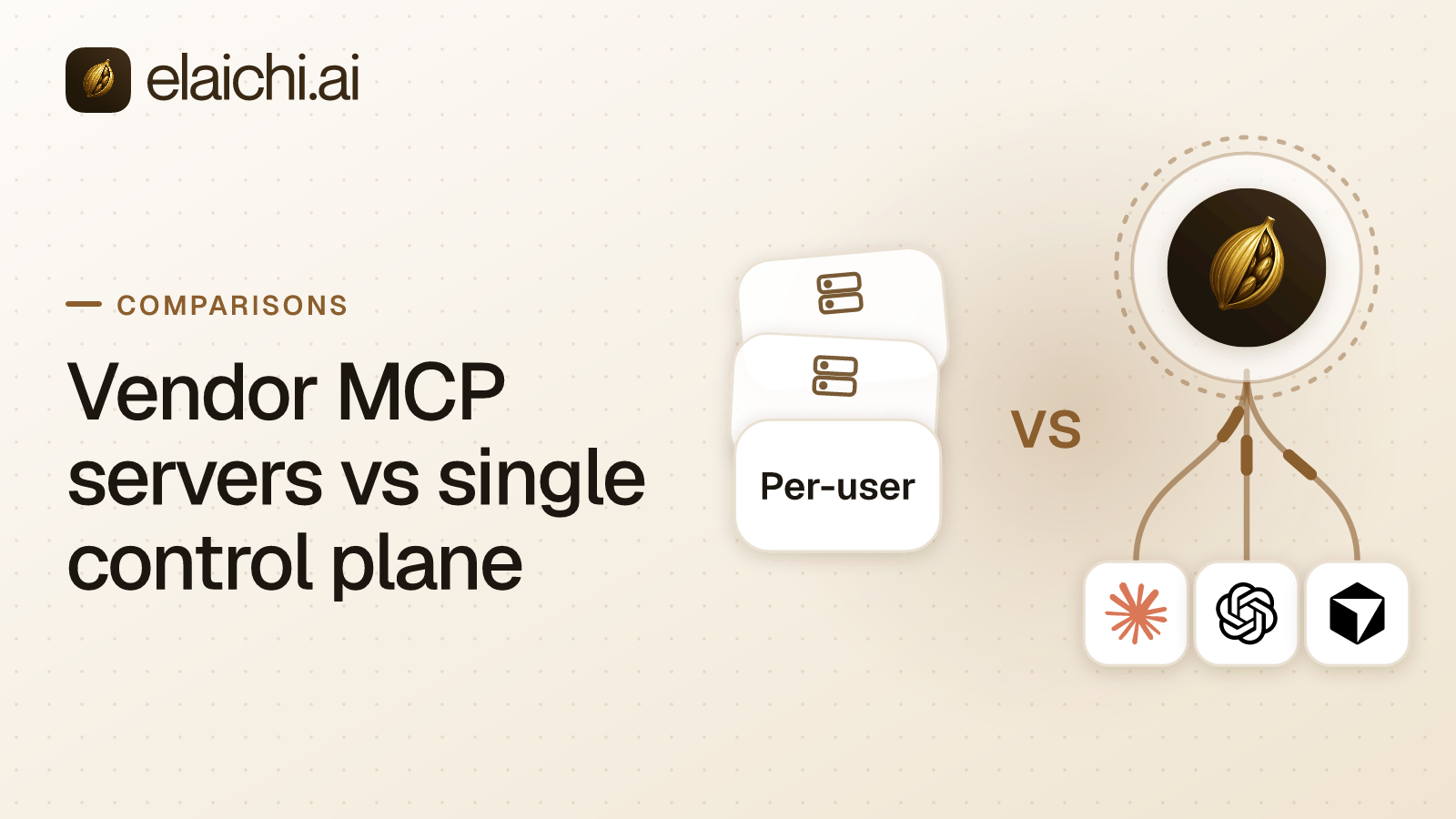
If neither of the two middle rows applies to you, the native server is the simpler and cheaper choice. Use it. The general case for routing vendor servers through one plane sets out this trade-off at more length, including where native servers remain the better default even at moderate scale.
Elaichi's catalog holds two kinds of connector. There are ones Elaichi authors and runs itself, and native MCP connectors, where the vendor builds and runs its own MCP server and Elaichi handles sign-in, access and audit in front of it. Salesforce is the first kind: Elaichi authors and runs it, and its tools carry Elaichi's own names, such as Delete a Salesforce account by ID. Either way, the tools come through the same /mcp address, under the same roles, restrictions and audit log as every other app in 650+.
What does the audit log record after a rep asks Claude about an account?
Every connected-tool call that reaches execution writes one row. In Elaichi, one entry for each connected-tool call that reaches execution (a call refused earlier writes none). It does not record argument values beyond the one path argument that names the object being acted on.
The console's detail panel turns that row into a sentence that opens with where the call ran. For example: "Using Claude, Emily Carter updated the page ...". The Approval line for a read says "Didn't need approval because it only read data". A call from an MCP client reads "Allowed by the access Claude was granted."
Two honest limits apply before you rely on this log for an investigation:
- A call refused before execution writes no audit row. A restriction or a missing scope stops the call upstream of any executor running. If you need to know how many times a rep was blocked from deleting, that is not derivable from the audit log.
- Filtering the audit log to an "MCP" category does not show MCP tool calls. Connected-tool calls sit in the assistant category, because their internal action name is
assistant.toolbox_tool. Filter by that action name, not by transport.
Elaichi keeps 90 days of audit history. A longer retention window means forwarding to your own log service, which comes with the Black plan, with Datadog as the destination that delivers.
How do you offboard a rep who connected their own Salesforce?
In Elaichi, removing or suspending a member revokes every live grant in the same transaction as the membership change. The revocation happens inside the same call that deletes the membership, and grants are re-read on every request, so there is no cache window to wait out. The next call after revocation is denied, whenever it arrives. The same holds for suspension, including SCIM setting the member inactive. Reactivating a member later does not restore their prior grants; they consent again from scratch.
Before you remove them, read the offboarding preflight. It returns the departing rep's whole estate: the connections they own, their synthetic tools, toolboxes, templates and custom connectors, and every toolbox entry anywhere in the organization that depends on one of their connections. A private Salesforce connection that nothing beyond the member depends on is deleted with them by default. Only a private connection marked as needing a decision, because a toolbox beyond the member still pins it, blocks the removal until you transfer or delete it. A shared connection never blocks the removal; left in place, it keeps working for the people it was shared with.
One thing a transfer does not do. It rewrites only the connection's owner record inside Elaichi, not the underlying stored credential. A transferred Salesforce connection still authenticates to Salesforce as the account that was signed in when the connection was created. Transferring ownership in Elaichi does not re-run the OAuth handshake. You must deprovision that Salesforce user separately, in Salesforce or through your identity provider. Removing someone from Elaichi ends their access through Elaichi; it does not touch their accounts in the connected apps themselves.
For the general version of this sequence, including contractors and shared connections, see the offboarding post. For a week-one setup sequence across apps, see the control plane setup checklist.
 Add one link to your AI app
 ChatGPT
 Claude
 Cursor
 Microsoft Copilot