The situation in week one
You have a Gold trial, a handful of people who already use Claude or ChatGPT, and a list of apps somebody wants connected. The temptation is to build the full access model before anyone connects anything. That is the wrong order. The first week is for getting a small number of real calls through the system. Read what those calls produced, so the rules you write in week two rest on observed behavior rather than guesses.
This mcp control plane setup checklist follows that order. An MCP control plane is the single place a company connects its apps. It then serves governed tools from those connections to AI clients. MCP (Model Context Protocol) is the protocol those clients speak. If you are still deciding whether you need one at all, the control plane overview answers that question first.
One thing to settle before you start. Elaichi serves MCP at one address, https://api.elaichi.ai/mcp, the same string for every organization. The grant behind each person's token decides which organization and which tools their client reaches, not the URL. There is no per-team address to plan for.
Day one: add an Auditor on a free seat
The first invitation you send should be an Auditor. It costs nothing, and it means somebody other than you can see what happened from the start. Auditor is one of three free seats in Elaichi, alongside Guest and Billing Admin. A member whose only role is one of those three does not count as a billable seat. The console marks them "Free" in the roles list and in the invite dialog.
Auditor holds 12 permissions, every one of them a view permission. They are billing:view, connector:view, connection:view, template:view, toolbox:view, restriction:view, api_token:view, sso:view, logging:view, notification:view, audit:view and spend:view. It holds no create, share, manage, override or delete permission, and no tool:execute. So an Auditor cannot connect an account, run a tool or change a rule.
Two of those permissions grant nothing. connection:view and template:view are both labeled "Reserved (no effect)" in the console. Connections and templates resolve from ownership or an explicit share rather than from an organization permission. toolbox:view covers organization-wide synthetic tool definitions, not other people's toolboxes. What the Auditor role opens is billing details, the connector catalog, restrictions and API token metadata. It also opens SSO and SCIM settings, logging and notification destinations, and the audit log.
That last one is the point. audit:view is held by Org Owner, Org Admin and Auditor. It turns the audit log from a view of your own activity into a view of the whole organization. Give it to whoever will be asked for evidence later: a compliance reviewer, a security lead, an internal auditor. It takes no billable seat and it cannot change anything.
Day one or two: one role per member
A member holds exactly one role in an organization. Role writes refuse zero roles or more than one. Asking for two is answered with: "A member can hold only one role in an organization. Assign a single role, or create a custom role that combines the permissions you need."
So each role is meant to be a complete persona, not a permission to stack. For week one, use the system roles and resist the urge to author anything. Six of them form a strict subset chain: Guest inside Member inside Team Admin inside People Admin inside Org Admin inside Org Owner. Billing Admin and Auditor sit off the chain for narrow access.
For most people the answer is Member. Member holds 23 permissions, including connection:create, toolbox:create, template:create, the matching share permissions, team:create and tool:execute. A Member can connect any catalog connector with their own account, build a toolbox, and run tools through their AI client. An admin restriction is what narrows that. That is the shape you want for a first week: people connecting their own accounts and running their own calls.
Two roles to hand out carefully. Org Admin holds every permission except billing:manage and org:delete. Elaichi keeps deletion with the owner on purpose. The code's stated reason is that owners hand Org Admin out freely. Keeping org:delete with the owner bounds a compromised admin account. An attacker who lands one "cannot delete the evidence along with the workspace." connector:create is the one permission Elaichi flags High trust. Connector governance binds the connector, not the host it calls. A restriction on one connector does not constrain a new connector aimed at the same API. Among the system roles only Org Owner and Org Admin hold it.
One timing fact trips up a first week. A role change takes about two minutes to take effect, not the next call. Member context, including roles, teams and resolved restrictions, is cached for 60 seconds under a per-organization epoch. A remote point of presence can take that long to see the new epoch. Plan a short wait into any test where you change a role and then check what the AI client sees.
If you want to think harder about role shape before you commit, the role design piece works through the one-role-each constraint in detail.
Day two or three: connect two or three apps, yourself
Do not open the catalog to everyone on day two. Connect two or three apps yourself. Run real questions through them, and see what comes back before anyone else is involved.
Pick apps where a wrong answer is cheap to notice: a project tracker, a help desk, a document store. Leave payroll, billing and anything with a delete-heavy tool list for later. Elaichi authors and runs most connectors in its catalog itself. It governs vendors' own MCP servers for the rest, as native MCP connectors. A team can also bring its own remote MCP server under the same rules. For a native MCP connector, the vendor builds and runs the server and its tools. Elaichi handles sign-in, access and audit in front of it.
Two facts shape how you share what you connect. Every call through a connection fetches credentials from that one connection's bound account, whoever is calling. So a shared connection runs on its owner's sign-in to the third-party app. A connection with no sharing grants is private to its owner. Any grant row, direct, team or organization-wide, makes it reachable by someone else.
The common week-one instinct is to connect everything once and share it with the team. That gives you one identity in the app rather than per-person identity. Where the app on the other end should see the person, the tools must run on that person's own connections. Per-person app access covers the difference and when each one is right.
For a member to connect their own account at all, no restriction may target that connector for them. When no restriction rule reaches a member, nothing is restricted: every connector and tool passes the check. Week one should mostly stay in that state.
Day three or four: write one restriction, not ten
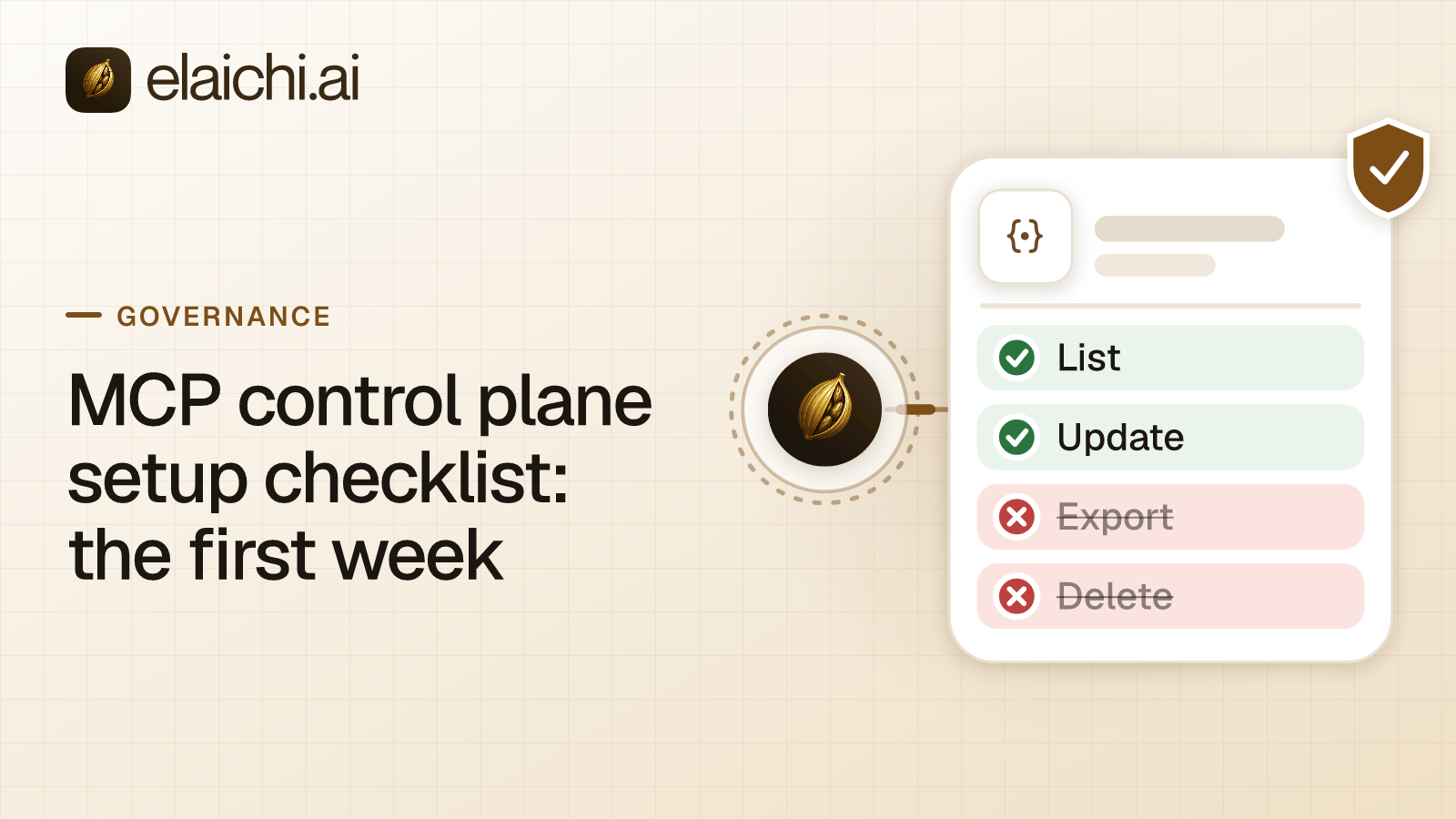
Write exactly one restriction in the first week, and make it a block rule on a role.
A restriction targets either a role, applying to every member who holds it, or one member. The resolver's decision order is worth reading before you write one. In Elaichi, restriction targets are role or user only; the organization default is the absence of a rule, which means allow everything. Keeping a team off a tool therefore means writing the rule on their role or on each member. Reading restrictions needs restriction:view. Creating, editing or deleting one needs restriction:manage plus the restrictions plan feature, which Gold and Black both include. A rule aimed at a single member also needs restriction:override.
The reason to start with a block and not an allow is simple. An allow rule turns on the allowlist for its layer just by existing, whatever it names. Once a role carries any allow rule, an allowlist is in force for it. Every connector and tool none of its allow rules names is then blocked for that role. That holds across all connectors, not only the ones the rule mentions. An allow rule naming nothing blocks everything for its target, and its summary reads "Allows nothing. Every connector and tool is blocked." That is a lockout, not a placeholder.
A layer with only block rules has no allowlist, so everything it does not block passes. That is the right property for week one. You are closing one specific door, not deciding the shape of every door. Block the tools that delete, or the one admin-style tool that has no business in a chat window. Leave the rest open while you watch.
Two things to know about how blocks match. When a rule is saved, Elaichi looks each named connector and tool up in the catalog. It stores each tool's operation beside its name. A block rule then matches by name or by operation. Renaming a tool cannot slip it past a block. A block on a connector also blocks every fork that declares descent from it. Why blocks and allows match differently goes through the mechanics.
Restriction writes are recorded as restriction.created, restriction.updated and restriction.deleted, so your one rule leaves a trail. Like a role change, a restriction change reaches every surface in about two minutes.
Day four or five: read the audit log
The audit log is not plan-gated beyond having an active plan. Any organization on Gold or Black, trial included, has it. Read it in week one, before anybody asks you for it.
Every member can read the audit log, whatever their role, Guest and Billing Admin included. With audit:view they read every event in the organization. Without it they read their own events plus events on connections they own or can edit. The response says which scope it used.
Each connected-tool call that reaches execution writes a row. The row records the acting user, the toolbox the call went through, and the tool's advertised and catalog names. It also records the connector and the connection the call reached. Then the tool's classification, and whether approval was required and how it was given. It records the surface too, with the MCP client's id when that surface is mcp. The console's detail panel renders all of it as a sentence: "Using Claude, Emily Carter updated the page "Q4 Roadmap" in Notion through the connection "Acme Notion"."
Three limits to note now rather than discover later. A call refused before execution writes no row: a restriction, a missing scope, an unknown tool name or a rate limit all stop it there. The log is eventually consistent, so a new entry can take a moment to appear. Elaichi keeps 90 days of audit history. The console's "All time" range sends no start time, so it shows at most the last 400 days of what is retained.
Audit export: set expectations, do not wait on it
If your plan was to point week one's audit trail at your own log service, adjust it. Logging destinations forward audit and tool-call events to a customer's own log service. They are a Black-plan feature, and export to your own Datadog comes with the Black plan, which is launching soon. The pricing page shows Black as "Launching soon" with a "Talk to us" button instead of a price.
So week one's answer is the in-product log, read in the console or through the API, with 90 days of history. If a longer history matters to your reviewer, say so in your rollout note. Plan for forwarding when Black is available. Of the three destination types Elaichi accepts, Datadog is the one that delivers. The Splunk HEC and Microsoft Sentinel forwarders answer with a not-implemented error, and the console labels both "(coming soon)".
For what a reviewer actually asks for, the audit log requirements piece is the better place to look than a feature list.
What this MCP control plane setup checklist leaves for month two
Five things people reach for in week one that are better left to month two.
Custom roles. A custom role may include only permissions its author currently holds. Editing or deleting one requires holding every permission that role currently has. More to the point, a custom role is always a billable seat, even one holding only view permissions. Elaichi creates every custom role with seat class billable, and the role API cannot change it. Start on the system roles, watch where somebody is genuinely blocked, then author one role against that.
Templates and shared toolboxes. Sharing a template with a team at use gives each member the right to stamp their own copy. It creates no toolbox for anyone, and each member picks their own connection for each app when they stamp. A toolbox shared at use runs each grantee's call through the connection pinned in the entry, under the authority of whoever pinned it. Both are useful, and both reward a week of watching how people actually work first.
Synthetic tools. A synthetic tool is a graph of 1 to 20 steps that Elaichi advertises to an AI client as one tool. It is owner-only: reading, editing, running or deleting it is refused for anyone else, whatever permissions they hold. It cannot be shared or transferred either. That makes it a poor fit for a first week, when you want things other people can see.
Frozen parameters. Locking an argument on a toolbox entry is a real control, and the console calls them "Locked-in values". Two facts make them a month-two job. The AI can see what is frozen and often the values, and a client that calls the toolbox-get operation reads every frozen value in full. A freeze also holds only on calls that run through the entry carrying it. Anyone who can use the connection directly has the same tool without the freeze. Locking tool arguments explains what to keep unshared for a freeze to mean anything.
SSO and SCIM. Both are on Gold, so you could configure them in week one. Do not. Creating or updating an SSO connection needs sso:manage and a step-up confirmation from a browser session. Enforced SSO is anchored to a verified domain, and a mapping can confer at most one role. Joining through SCIM, a verified domain or SSO puts a person in no team; team membership still comes from an admin afterwards. That is a week of its own, and where provisioning stops is the right starting point for it.
Where each client's own setup lives
The Elaichi side of a client connection is the same everywhere: one address, and one OAuth sign-in per person. The client side differs, and each vendor documents its own path. On Claude Team and Enterprise plans, an Owner or Primary Owner adds a custom connector from Organization settings > Connectors (Anthropic, checked October 2026). ChatGPT's full MCP support, modify and write actions included, is in beta on the Business, Enterprise and Edu plans. That is OpenAI's own wording on its developer mode page (OpenAI, checked October 2026). In Cursor, Team admins can distribute shared MCP servers, configured under Dashboard > Plugins & MCPs (Cursor, checked October 2026).
When this checklist is more than you need
If two people are connecting one app each and nobody is asking for evidence, you do not need a week of setup. Invite them as Members, let them connect, and come back when the second app arrives. Come back when the first reviewer asks a question. The ordering in this mcp control plane setup checklist earns its keep when more than one team is involved. It earns it when somebody outside the team will be asked what happened.
For the honest version of that argument, read when you don't need a gateway yet before you spend the week.
When you are ready to connect the first client, the per-client setup guides cover the exact steps: Claude, ChatGPT and Cursor. The connector catalog shows what is available to connect, and the use cases pages show what other teams govern first.